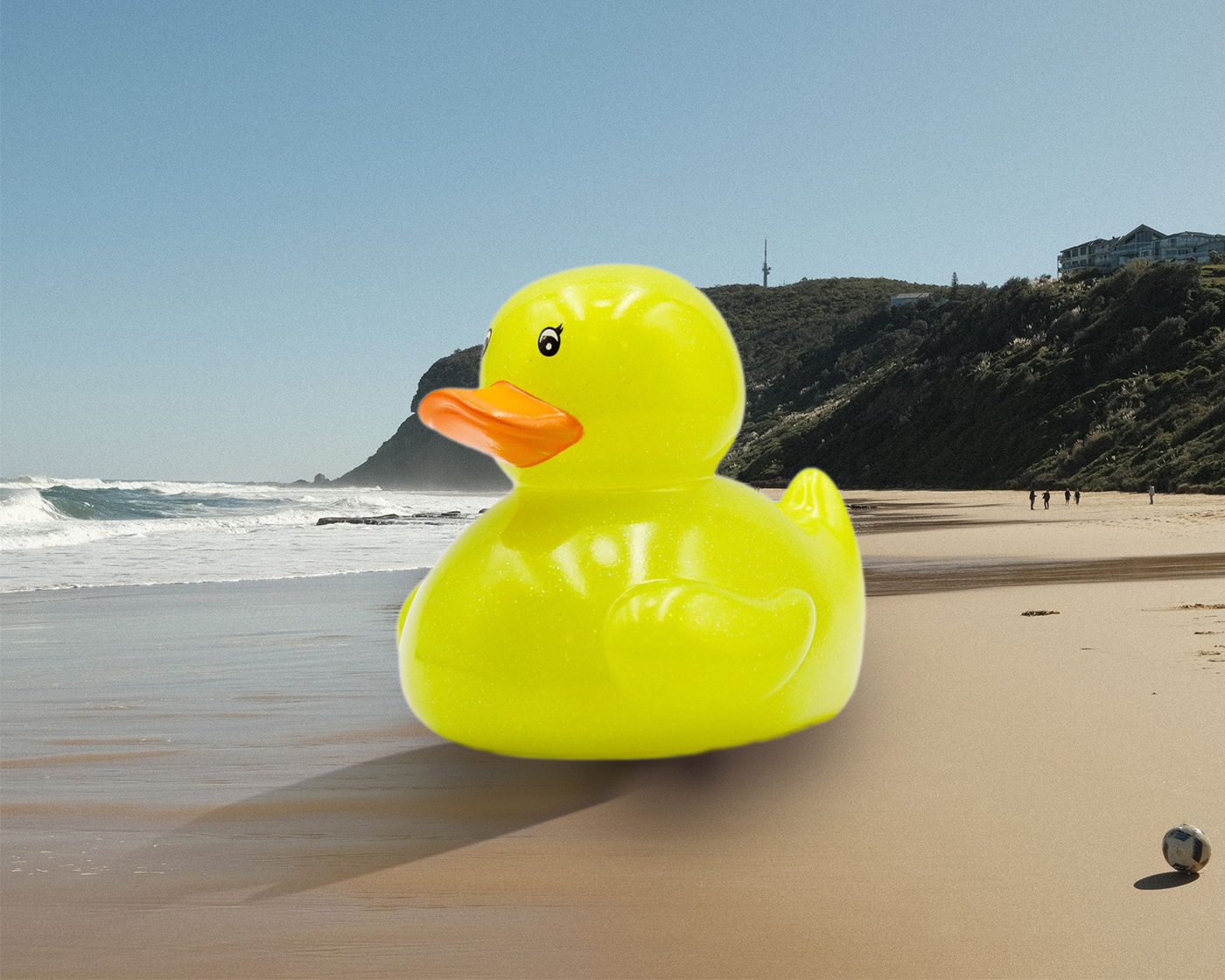
You are building a photograph that could not exist: a toy dinosaur, a rubber duck, a dog, or a fire hydrant, as big as a building, standing in a real place. The cutout is only the beginning. What makes a giant believable is scale, contact, and light. By the end of class your subject will stand on the ground, throw a long shadow that points the right way, catch warm light along its edge, and sit under one warm grade so it reads as a single photograph.
| Midpoint turn-in | LastName_Grounded.jpg | Your subject scaled, standing on the ground, with a cast shadow and a contact shadow. Submit it as soon as you finish Step 5. |
| Final turn-in | LastName_LargerThanLife.jpg | The finished image with rim light, haze, and grade. |
In every scene photo in this project the light comes from the upper left. Three things in your finished image have to agree about that.
- The shadow travels away from the light: toward you and off to the right.
- The rim light lives on the edge of your subject that faces the light: the left edge.
- The haze begins in the corner of the scene where the light is: the upper left.
The exact angle does not have to be perfect. What matters is that all three agree. If one of them disagrees, the eye rejects the whole picture before you can say why.
Pick one subject and one scene from the photo pack (the Download button at the top of this page). Any pairing works, and the odder the better. Do not use your own photos today. Every scene is already cropped to fit your canvas exactly, and the light in each one comes from the upper left.
Subjects (pick one)
- 1 Hydrant: Red fire hydrant against a pale wall. Cleanest edges of the four. (file: Subject_01_Hydrant.jpg)
- 2 Rubber Duck: Glossy yellow duck on a white background. Watch the beak and the tail. (file: Subject_02_Rubber_Duck.jpg)
- 3 Dog: Short-haired brown dog standing on pavement, facing the camera. (file: Subject_03_Dog.jpg)
- 4 Toy Triceratops: Toy dinosaur on an orange background. Horns, tail, feet, and leg gaps. (file: Subject_04_Toy_Triceratops.jpg)
Scenes (pick one)
- 1 Beach: Golden sand, surf, and a headland. The light sits at the left edge near the horizon. (file: Scene_01_Beach.jpg)
- 2 Lawn: Open park lawn with a tree line and a bright, cloudy sky. (file: Scene_02_Lawn.jpg)
- 3 Street: Sunny city street with apartment buildings. The light sits just above the top left corner. (file: Scene_03_Street.jpg)
- 4 Basketball Court: Painted court with a hoop, fence, and buildings. The easiest place to judge scale. (file: Scene_04_Basketball_Court.jpg)
- Keyboard. Shortcuts are written for both systems. Ctrl+T (Cmd+T) means Ctrl+T on Windows and Command+T on Mac. Alt (Option) works the same way.
- Workspace. If your panels look scrambled, Window > Workspace > Reset Essentials Classic puts them back.
- Masks are a dial. White shows, black hides, gray is in between. Click the mask thumbnail (a border appears) before you paint on a mask. Press D then X to swap between painting black and painting white.
- Smart Objects. File > Place Embedded keeps a photo as a Smart Object. Leave your photos that way. Nothing today needs rasterizing.
- Blend modes. Multiply darkens whatever is underneath. Screen lightens it. Today you build one of each: Multiply for the shadow, Screen for the rim light and the haze.
The scene goes down whole, fills the frame, and never gets cut out. It is the world your subject will stand in.
- Go to File > New (Ctrl+N (Cmd+N)).
- Set Width to 1500 and check that the dropdown beside it says Pixels. Set Height to 1200. Set Resolution to 72, Color Mode to RGB Color and 8 bit, and leave Background Contents on White. Click Create. Press Ctrl+0 (Cmd+0) to fit the canvas on screen.
- Save right now with Shift+Ctrl+S (Shift+Cmd+S). Choose Photoshop (*.PSD) and name it LastName_LargerThanLife.psd.
- Go to File > Place Embedded, choose your scene photo, and click Place. The scene is already the right shape, so it should land covering the whole canvas.
- Check all four edges. If any white shows, drag a corner handle outward until it is gone. Keep the link between width and height on (in the Options bar) so the photo does not stretch. Press Enter (Return).
- Double-click the layer name and rename it SCENE.
Find three things before you move on
- Your ground. Beach: the sand. Lawn: the grass. Street: the road. Court: the painted surface. Everything you place today has to stand on it.
- Your horizon. The line where the ground runs out in the distance. Your subject's feet go below it.
- Your light. The brightest part of the sky, in the upper left. Beach: the left edge at about horizon height. Street: just above the top left corner.
Check your work: No white at any edge. The Layers panel shows Background and SCENE, and SCENE has no mask. You can point to your ground, your horizon, and your light.
Note. Do not cut out your scene. It has to stay whole so your shadow has ground to land on.
Let Photoshop take the first pass. Your job is to inspect what it made and fix what it missed. One rule: leave the subject's original shadow behind.
- Go to File > Place Embedded and choose your subject photo. It arrives large and covers your scene. Drag a corner handle to shrink it until you can see the whole subject, then press Enter (Return).
- Rename the layer SUBJECT.
- With SUBJECT selected, go to Select > Subject. Marching ants appear around what Photoshop thinks is your subject.
- Inspect it. Zoom in with Ctrl+Plus (Cmd+Plus) and look along the whole outline. Select the Quick Selection Tool (W) to repair mistakes. Drag to add missed areas, hold Alt (Option) and drag to remove extras, and use [ and ] to change brush size.
- Leave the original shadow out. Your subject's photo came with a shadow on the ground. That shadow belongs to a different photograph, and you are about to build a better one.
- When the marching ants follow your subject, click the Add Layer Mask icon at the bottom of the Layers panel. The old background disappears.
- Press Ctrl+1 (Cmd+1) to zoom to 100% and look along the outline for a leftover fringe. Click the mask thumbnail so a border appears around it, press B, press D so black is in front, use a small soft brush, and paint over anything that should be hidden. Press X to paint white and bring an edge back.
- With the mask thumbnail still selected, open Window > Properties. If the edge looks harsh, drag Feather to about 1 px.
- Press Ctrl+S (Cmd+S) to save your PSD. You will save again as you go.
Watch these spots on your subject
- Hydrant: the small nozzle caps on both sides and the base. Keep its shadow out.
- Rubber Duck: the beak, the tail tip, and the pale glossy edges against the white background. The duck's shadow on the floor should be out too.
- Dog: the gaps between the legs, the tail tip, and the shadow on the pavement.
- Toy Triceratops: the horns, the frill, the tail, the feet, and the gaps between the legs. The dark shadow on the orange floor stays out.
Check your work: SUBJECT shows two thumbnails: the photo and a black and white silhouette. The subject sits in your scene with no scraps of the old background and none of its original shadow.
Note. It will look like a sticker pasted onto a photograph. That is correct for now. Steps 3 through 8 are what fix it.
Note. If Select Subject grabs too much or too little, do not fight it. Press Ctrl+D (Cmd+D) to deselect and build the selection yourself with the Quick Selection Tool.
This step is the difference between a giant and a big photo pasted on top of another photo. Three rules do all the work. The spot where your subject touches the ground is its contact point: the hydrant's base, the duck's bottom, the dog's or dinosaur's feet.
Three rules for a believable giant
- Contact point on visible ground. It sits below the horizon, on ground you can see.
- About two thirds of the way down the canvas. That leaves room underneath for the shadow, at least one sixth of the canvas height.
- Bigger than something in the scene. A giant has to beat a building, a tree line, a headland, or a hoop.
- Click your SUBJECT layer and press Ctrl+T (Cmd+T) to open Free Transform. The box will be larger than your subject because it includes the part of the photo you masked out. Ignore the box and judge by what you can see.
- Drag a corner handle to scale. Aim for your subject to be roughly half to two thirds of the canvas height. A wide subject like the triceratops can run up to about two thirds of the canvas width instead.
- Drag from inside the box to move. Put the contact point between 60% and 75% of the way down the canvas. Keep the subject near the center, or slightly left, so there is open ground lower right for the shadow.
- Compare your subject to the biggest thing in the scene. Beach: taller than the headland, or at least much bigger than the tiny soccer ball. Lawn: taller than the trees. Street: taller than the buildings. Court: taller than the hoop and the building behind it.
- Press Enter (Return) to commit, then Ctrl+S (Cmd+S) to save.
Remember. Bigger means closer, and closer means the contact point sits lower on the canvas. Do not shrink the feet up toward the horizon while making the rest of the subject huge. That is how a giant turns into a floating sticker.
Check your work: Your subject is clearly bigger than something in the scene, its contact point is on visible ground about two thirds of the way down, and there is open ground to the lower right. It still looks pasted on. The next steps fix that.
The light is in the upper left, so the shadow travels toward you and off to the right. You will build it from a copy of your own cutout. This is the longest step of the day and the one that sells the picture.
Aim the shadow. Picture a straight line from your light, through the contact point, out to the lower right of the canvas. Your shadow lies along that line. If your scene already has a real shadow in it (a building, a fence post, a tree), yours should point the same way.
Part A: Build the shadow shape
- Click SUBJECT and press Ctrl+J (Cmd+J) to duplicate it. Rename the copy SHADOW SHAPE and drag it below SUBJECT in the Layers panel, still above SCENE.
- With SHADOW SHAPE selected, click the fx icon at the bottom of the Layers panel and choose Color Overlay. Click the color swatch, type 2B2233 into the hex field (a dark plum, because real shadows are never pure black), and click OK. Leave Blend Mode on Normal and Opacity at 100%. Click OK.
- Go to Edit > Transform > Flip Vertical. Your copy turns upside down.
- Press Ctrl+T (Cmd+T). Drag the bottom-middle handle upward until the dark shape is about half as tall as your subject. Ground shadows look flattened when you view them from standing height.
- Still in Free Transform, right-click inside the box and choose Skew. Drag the bottom-middle handle sideways, along your line, until the shadow leans off to the lower right. Press Enter (Return).
- Switch to the Move Tool (V) and drag the shadow until its start meets your subject's contact point exactly. Hold Shift to keep the drag straight.
Part B: Make it look like a shadow
- With SHADOW SHAPE selected, set the blend mode (top left of the Layers panel) to Multiply and drop Opacity to about 55% to 65%.
- Click the mask thumbnail on SHADOW SHAPE so a border appears around it. In the Properties panel, drag Feather to about 8 to 12 px. The edge goes soft.
- Click SHADOW SHAPE and press Ctrl+G (Cmd+G) to put it in a group. Rename the group SHADOW.
Part C: Fade the shadow so it gets lighter with distance
- In the Layers panel, find the SHADOW folder you made in Part B. Click the folder name once to select it. Do not open the folder, and do not click the SHADOW SHAPE layer inside it.
- With the SHADOW folder selected, click the Add Layer Mask icon at the bottom of the Layers panel (a rectangle with a circle in it). A white thumbnail appears on the SHADOW folder row. Nothing changes on the canvas yet.
- Click that new white thumbnail once. A thin border appears around it. That border means you are working on the mask, not the folder.
- Press D on your keyboard. Look at the two color squares at the bottom of the toolbar to confirm: black on top, white underneath.
- Select the Gradient Tool (G). If the toolbar shows a Paint Bucket instead, click and hold that icon and choose Gradient Tool.
- In the options bar at the top, click the small arrow beside the gradient preview and pick Foreground to Background (the black to white swatch). Then click the Linear Gradient icon, the first of the five style icons.
- Find the far tip of your shadow, the end farthest from your subject. Hold Shift, click just beyond the far tip, drag toward your subject, and let go when you are about a quarter of the way out from the subject. Holding Shift keeps the line straight. You are telling Photoshop: black (hidden) where I start, white (visible) where I stop.
What you should see: The far end of the shadow melts away and the part near your subject stays dark, with no hard edge. To check, Alt-click (Option-click) the mask thumbnail: it should be black at the far end and fade to white near the subject. Alt-click it again to go back. If it came out backward (the shadow vanished near the subject and the far end is dark), press Ctrl+Z (Cmd+Z), press X to swap the colors, and drag again the same way.
Part D: Add a dark contact shadow where it touches the ground
- In the Layers panel, click the SHADOW folder once to select it. A new layer is created directly above whatever is selected, so this puts the new layer in the right spot.
- Click the Create a New Layer icon at the bottom of the Layers panel (the square with a folded corner, just left of the trash can). A blank layer appears above the SHADOW folder and below SUBJECT.
- Double-click the new layer's name and rename it CONTACT.
- With CONTACT selected, click the blend mode dropdown at the top left of the Layers panel (it says Normal) and choose Multiply.
- Click the foreground color square in the toolbar. It is still black from Part C. Type 2B2233 into the hex field and click OK.
- Select the Brush Tool (B). In the options bar, click the brush preview and set Hardness to 0%. Set the size to about the width of one foot, using [ and ] to adjust. Set Opacity to 100% and Flow to 25%.
- Zoom in on the spot where your subject meets the ground (Ctrl+Plus (Cmd+Plus)). Click, do not drag, once along the bottom edge of the subject where it touches the ground. Click again in the same spot two or three more times. Each click adds a little more darkness, because Flow is 25%.
- Cover every place the subject touches the ground. Hydrant and duck: click along the base until you have one wide patch. Dog and triceratops: one small spot under each foot. It is fine if some clicks land on the subject itself. SUBJECT sits above CONTACT and covers them, so only the part that pokes out around the base shows.
- Zoom out (Ctrl+0 (Cmd+0)). Click the eye icon beside CONTACT to switch it off, then on again. The ground under the base should get darker when it is on.
What you should see: A soft dark patch hugging the base or feet, darkest right where the subject touches the ground and blending into the cast shadow. No hard edge and no black blob. If it looks like a black blob, lower the CONTACT layer Opacity to about 50%, or press Ctrl+Z (Cmd+Z) and use fewer clicks. If nothing shows, you are probably painting on the wrong layer. Click CONTACT so it is highlighted, then try again.
Watch out. Do Part C on the mask of the group, not the mask of SHADOW SHAPE. The mask on SHADOW SHAPE holds the silhouette of your subject, and a gradient painted there wipes it out. A layer can only wear one mask, so the group carries the fade.
Your Layers panel should read, top to bottom
- SUBJECT
- CONTACT
- SHADOW (group, gradient mask) containing SHADOW SHAPE (silhouette mask)
- SCENE
- Background
Check your work: The shadow starts at the contact point, leans away from the light, fades toward its far end, has a soft edge, and is darkest right where the subject meets the ground.
Stop here. Your subject is cut out, scaled, standing on the ground, and casting a shadow. That is a finished piece of work and it is worth turning in on its own. Everything after this is lighting.
- Press Ctrl+S (Cmd+S) to save your PSD.
- Go to File > Export > Export As. Set Format to JPG. For Quality, look at what the slider shows on your machine: if it shows a percentage, choose 85%. If the top of the range is 7 or 12, choose one step below the top. Photoshop uses different scales in different dialogs, so go by what is on your screen.
- Leave Convert to sRGB checked.
- Save it as LastName_Grounded.jpg.
- Upload LastName_Grounded.jpg to Canvas right now. Do not wait until the end of class.
Check your work: You have a layered PSD and a JPEG on disk, and the JPEG is uploaded.
Note. Why submit halfway: the cutout, the scale, and the shadow are the hard structural work. The next steps are additive. If Photoshop crashes or you get pulled out of class, you have already turned in a complete piece of work.
The light is behind and to the left of your subject, so the edge facing it catches light. This should look like light catching an edge, not an orange outline around the whole object. The recipe: load the subject's outline, fill it warm yellow, blur it, set it to Screen, then hide it with a black mask and paint it back only where the light hits.
- Hold Ctrl (Cmd) and click the mask thumbnail on SUBJECT. Marching ants appear around your subject.
- Click the SUBJECT layer, then click the Create a New Layer icon. Rename the new layer RIM LIGHT. It sits directly above SUBJECT.
- Click the foreground color swatch, type FFC46B into the hex field, and click OK.
- Go to Edit > Fill. Set Contents to Foreground Color, Mode to Normal, Opacity to 100%, and click OK. (Shortcut: Alt+Backspace (Option+Delete).) Your subject fills with warm yellow.
- Go to Select > Deselect (Ctrl+D (Cmd+D)).
- Go to Filter > Blur > Gaussian Blur. Set the radius to about 15 px (anywhere from 10 to 20 works) and click OK. The yellow spreads out past the outline in a soft halo.
- Set the blend mode to Screen. Right now your whole subject looks washed with orange. That is expected.
- Hold Alt (Option) and click the Add Layer Mask icon. This makes a mask filled with black, so the glow disappears completely. Black hides everything.
- Click the new mask thumbnail. Select the Brush Tool (B), soft round, Hardness 0%, size 150 to 250 pixels, Flow 20%. Press D, then X, and check the swatches: white should be in front.
- Paint slowly along the left edge of your subject, the side facing the light. The glow appears wherever you paint. Build it up with repeated passes and let it fade out along the top and bottom. Stay off the right edge, which is the shadow side.
- If the glow is too strong, lower the layer Opacity to between 40% and 60%.
Watch how your subject reacts
- Toy Triceratops and Dog: dark surfaces show the glow strongly. Start at 50% Opacity.
- Hydrant: a narrow warm highlight along the left works well.
- Rubber Duck: the yellow is already bright, so the glow will look gentle. That is normal. Screen can only lighten, so on very light areas there is little left to lighten.
Check your work: Warm light runs along the left edge of your subject and nowhere else. The subject itself is not washed orange. Alt-click (Option-click) the mask thumbnail: it should show a soft white smudge along the left edge only.
The glow on your subject needs a source. This step puts the source in the scene, in the same warm color, so the two match.
- Click the SCENE layer, then click the Create a New Layer icon. The new layer lands directly above SCENE. Rename it SUN HAZE.
- Make sure the foreground color is still FFC46B.
- Select the Gradient Tool (G). In the options bar click the gradient preview, open the Basics folder, and choose Foreground to Transparent. Set the style to Radial (the second icon) and check Dither.
- Click on the canvas at your light and drag outward about three fifths of the way across. Release. Lawn and Court: the upper left. Street: start at the top left corner. Beach: start at the left edge, about halfway down, near the horizon.
- Set the blend mode to Screen and Opacity to about 40% to 60%.
- Not happy? Undo and drag again from a different spot. A short drag makes a tight, hot glow. A long drag makes a soft one.
Check your work: A warm bloom on the left side of the scene that fades as it moves right, sitting behind your subject. Your subject is not covered by haze.
Note. This layer sits below the subject on purpose. The light is behind the subject. Haze in front of it would look like fog on a lens.
Your subject and your scene were photographed at different times, in different light. One warm grade over the whole picture is what makes them look like the same afternoon. In Mood Swing you clipped every adjustment. Today you do the opposite, because the job is different: you want the adjustment to hit everything underneath it.
- Click the top layer in your Layers panel so new layers land at the very top.
- Click the adjustment layer icon (the half black, half white circle at the bottom of the Layers panel) and choose Photo Filter.
- In the Properties panel set Filter to Warming Filter (85) and Density to about 20% to 25%. Leave Preserve Luminosity checked.
- Add a Curves adjustment layer on top of that. Click the line left of center and pull it down a little. Click right of center and pull it up a little. A gentle S.
- Do not clip either layer. They sit at the top and grade everything below them.
- Click the eye icon on each adjustment layer to switch it off and on. Compare.
Check your work: One warm cast across the subject and the scene. No solid black patches and no blown-out white areas. Your subject no longer looks like a sticker.
Two files again, same as Step 5.
- Ctrl+S (Cmd+S) to save your PSD. This keeps every layer editable.
- Go to File > Export > Export As. Set Format to JPG and use the same Quality choice you used in Step 5. Leave Convert to sRGB checked.
- Name it LastName_LargerThanLife.jpg and save it.
- Upload the JPEG to Canvas. Submit the JPEG, not the PSD.
Check your work: You have now submitted two files today: LastName_Grounded.jpg from Step 5 and LastName_LargerThanLife.jpg from this step, and your layered PSD is saved.
Before you submit, look at your finished image and check every line. This is how your work will be graded.
- Canvas is 1500 by 1200 pixels.
- Scene fills the canvas with no white at any edge.
- Subject is cut out cleanly with no old background and none of its original shadow.
- Contact point is on visible ground, about two thirds of the way down.
- Subject is clearly bigger than something in the scene.
- Cast shadow starts at the contact point, points away from the light, softens, and fades out.
- A darker contact shadow sits right where the subject meets the ground.
- Rim light is on the light-facing left edge only.
- Haze sits on the left side of the scene where the light is, behind the subject.
- Photo Filter and Curves sit on top of everything, unclipped.
- Both JPEGs are uploaded (LastName_Grounded.jpg and LastName_LargerThanLife.jpg) and the layered PSD is saved.
Nothing tells the eye how big something is like a small thing standing next to it. Add a tiny second subject at your giant's feet.
- Go to File > Place Embedded and place a different subject photo from the menu. Use Select > Subject, repair it, and add a layer mask, the same as Step 2. Name it TINY.
- Scale it very small, roughly 60 to 100 pixels tall on your canvas. Place it near your giant's contact point, standing on the ground, in the sun or inside the shadow.
- Give it a shadow in about a minute: duplicate it, add a Color Overlay of 2B2233, flip it vertically, squash it, skew it along the same line as your big shadow, and set it to Multiply at about 60%. Move it so the contact points meet.
- Make sure the tiny subject's shadow points the same direction as the giant's. One light source.
Check your work: Someone looking at the picture can tell how enormous your giant is without being told.
Your subject came from a different photograph. This step nudges its brightness so it fits the scene.
- Click SUBJECT, then add a Curves adjustment layer. It lands directly above SUBJECT.
- Right-click the new Curves layer and choose Create Clipping Mask. This time you want the adjustment to affect only SUBJECT.
- Make a small brightness or contrast change so the subject looks like it belongs: darker if the scene is dim, brighter if the scene is bright.
Check your work: The subject sits in the scene better, and the Photo Filter and Curves at the top of your stack still affect the whole picture.
Note. Clipping is a question, not a rule. In Step 8 you left the grade unclipped because it should hit everything. Here you clip because this correction is only about the subject.
A lens flare is a small cheat that makes the light feel like a real source.
- Click the top picture layer (below your two adjustment layers) and create a new layer named FLARE.
- Go to Edit > Fill, set Contents to Black, and click OK. The canvas goes black.
- Go to Filter > Render > Lens Flare. In the preview, click to place the flare center where your light is. Set Brightness to about 80% and click OK.
- Set the blend mode to Screen and lower Opacity to about 60%.
Check your work: A small star and soft rings sit at your light without covering your subject. If the flare crosses your subject, add a mask and paint it away.
- Select Subject missed part of my subject, or grabbed the shadow. Use the Quick Selection Tool to add or subtract before masking, or repair the finished mask with a brush. If it is a mess, deselect and start with Quick Selection.
- The area inside the dinosaur's legs or the hydrant's arms is filled in. Paint black on the layer mask over the gap. Zoom to 100% first.
- My subject looks stretched. Undo. Make sure the link between width and height is on, then resize with a corner handle.
- My subject looks like it is floating. Move the contact point onto visible ground, then check that CONTACT sits directly underneath it.
- My shadow points toward the light or straight down. The light is upper left. The shadow should lean toward the lower right. Undo the skew and drag the bottom-middle handle the other way.
- My shadow looks like a black cutout of my subject. Check three things: blend mode is Multiply, Opacity is 55% to 65%, and the mask on SHADOW SHAPE has Feather set to 8 to 12 px.
- My shadow disappeared or turned into a rectangle when I added the gradient. You painted the gradient on the mask of SHADOW SHAPE. Undo, then do it on the mask of the SHADOW group instead.
- My shadow floats away from the subject. Switch to the Move Tool and drag the shadow until the contact points meet. The transform box is bigger than the visible shape, so line it up by eye.
- The Color Overlay option is gray. You have a group selected, or the layer is locked. Click SHADOW SHAPE itself, then click the fx icon.
- My rim light covers the whole canvas in orange. You filled without a selection. Undo back to before the fill, Ctrl+click (Cmd+click) the SUBJECT mask thumbnail so marching ants appear, then fill.
- Nothing appears when I paint the rim light. You are painting black on a black mask. Press X so white is in front, and check that the mask thumbnail has the border, not the layer.
- The rim light shows on both sides. Alt-click (Option-click) the mask to look at it. Paint black over the right side to hide it, then press X and paint white on the left.
- My rim light is barely visible on the duck. That is expected on light colors. Raise the layer Opacity a little instead of painting more.
- My haze is an orange blob. The blend mode is still Normal. Set it to Screen and lower Opacity.
- My haze covers my subject. SUN HAZE is above SUBJECT in the Layers panel. Drag it back down so it sits directly above SCENE.
- Only my subject changed color when I added the grade. The adjustment layer is clipped. Right-click it and choose Release Clipping Mask.
- Everything looks pasted together anyway. Run the One Light Source check: shadow, rim light, and haze all agree about where the light is. Then check that the contact point is on the ground and there is a dark contact shadow under it.
- A panel disappeared. Open the Window menu and click its name, or use Window > Workspace > Reset Essentials Classic.
- Contact and shadow are proof that something is really there. Your eye trusts a shadow more than it trusts an edge. A rough cutout with a correct shadow reads as real. A perfect cutout with the wrong shadow reads as fake.
- Multiply and Screen are the same idea in opposite directions. One takes light away, one adds it. Both got a mask you shaped by hand, the same dial you used in Echo, now working on light instead of on a photo.
- Convincing does not mean detailed. Nobody checks every hair or highlight. They check whether the shadow, the rim light, and the haze agree. Consistency is what the eye actually measures.
Select Subject, Quick Selection Tool, Layer Mask, Free Transform (Scale and Skew), Flip Vertical, Layer Style (Color Overlay), Blend Modes (Multiply and Screen), Properties panel Feather, Layer Groups with a group mask, Gradient Tool (Linear and Radial), Brush Tool on a mask, Fill, Gaussian Blur, Photo Filter and Curves adjustment layers
Optional steps add: clipped Curves and Lens Flare