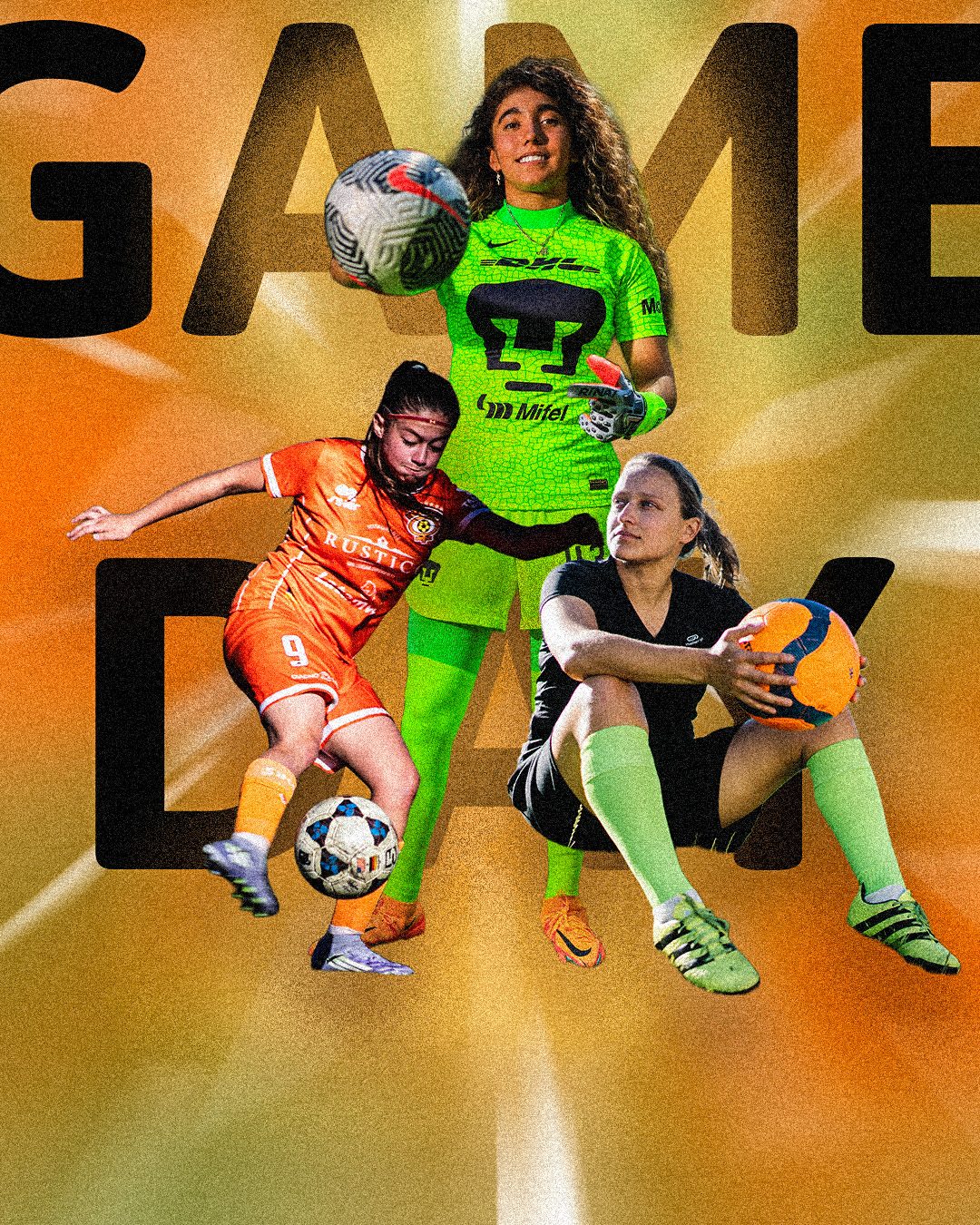
Game Day: Build a Layered Sports Graphic
Create a bold poster inspired by modern sports and entertainment graphics. Your design will include a colorful background with light streaks and stars, three cutout photos in three sizes, and oversized text placed behind the subjects.
Canvas: 1080 x 1350 px, 72 ppi, RGB
Submit: LastName_GameDay.jpg
Also keep: LastName_GameDay.psd
- Color-wash background with white streaks and stars
- All three photos from one set, masked: one large Hero, one medium Support 1, one small Support 2
- Layer effects on the two supporting figures
- Large headline word behind the subjects
- One short original slogan or event-style line
- Finished JPEG uploaded to Canvas
Photo Sets and Roles
Download gameday_source_photos.zip (the Download button at the top of this page) and unzip it. Choose one set. You will use all three photos in that set. The roles below are suggested: the Hero is the closest crop and works best when it is large. You may swap roles if you have a reason.
| Set | HERO (large) | SUPPORT 1 (medium) | SUPPORT 2 (small) |
|---|---|---|---|
| A: Track and Field | 01_track_competition_runner | 02_track_hurdles | 03_track_triple_jump |
| B: Soccer | 04_soccer_goalkeeper_green | 05_soccer_orange_kit_action | 06_soccer_seated_with_ball |
| C: Concert | 07_concert_singer_closeup | 08_concert_saxophonist_hat | 09_concert_musician_sunglasses |
| D: Cycling | 10_cycling_smiling_rider | 11_cycling_front_rider | 12_cycling_yellow_jersey |
Part 1: Choose a Set and Set Up
- Choose one set from the table. You will use all three photos in it.
- Find your Hero, Support 1, and Support 2 in the table. Keep the unzipped folder open so you can find the files quickly.
- You will place the original files straight into your poster. Do not use a screenshot or a thumbnail.
- In Photoshop, go to File > New.
- Set Width to 1080 Pixels, Height to 1350 Pixels, Resolution to 72 Pixels/Inch, and Color Mode to RGB Color. Click Create.
- Go to File > Save As. Choose Photoshop format, keep Layers enabled, and save LastName_GameDay.psd. Press Ctrl+S on Windows or Cmd+S on Mac after each major step.
Part 2: Build the Background Wash
- Create a new layer and name it Wash.
- Click the Foreground color swatch in the toolbar. In the Color Picker, type a hex code into the # box and click OK. Use the colors for your set:
- If you chose Set A, Track and Field: #1E3A8A (deep blue) behind where the Hero will stand, #B3261E (track red) toward the edges, #F5B700 (gold) as one bright patch near a top corner. The Hero wears red, so keep red away from the middle.
- If you chose Set B, Soccer: #0B6E3A (turf green) at the edges and corners, #FF6B1A (kit orange) behind where the Hero will stand, #C6FF00 (neon lime) in a few small spots only. The neon kit competes with large areas of lime.
- If you chose Set C, Concert: #3B1F5E (deep purple) at the edges and corners, #E85D75 (coral pink) behind where the Hero will stand, #F2A541 (golden hour) low on the canvas.
- If you chose Set D, Cycling: #1D3557 (navy) at the edges and corners, #E63946 (race red) behind where the Hero will stand, #FF8C1A (dirt orange) as a glow near the bottom.
- Select the Brush tool. Use a large, soft round brush, about 400 px, and paint wide areas of your three colors across the canvas. Put the darkest color at the edges and the brightest color behind where the Hero's head will be. Cover the entire canvas.
- Add white streaks. With the Wash layer still selected, change the brush to a hard round brush (Hardness 100%) at about 25 px, and set the color to white (#FFFFFF). Click once near the center of the canvas, then hold Shift and click near an edge to draw a straight line. Draw 8 to 10 lines that fan outward from the center like rays. Vary the lengths and thicknesses.
- Add white stars. Select the Polygon tool (it is grouped under the Rectangle tool). In the options bar, set Fill to white, Stroke to none, and Sides to 5. Click the gear icon, check Star, and set Star Ratio to 50%. Draw 5 or 6 stars of different sizes, mostly away from the center. Each star makes its own layer.
- Select the top star layer and press Ctrl+E on Windows or Cmd+E on Mac (Merge Down). Repeat until all the stars are merged into Wash. If Photoshop asks about rasterizing, click Yes or OK. Make sure the final layer is named Wash.
- Right-click the Wash layer and choose Convert to Smart Object. This lets you apply the blur as an editable filter and go back to repaint the background later.
- With the Wash Smart Object selected, go to Filter > Blur > Radial Blur. Set Amount to 60, Blur Method to Zoom, and Quality to Best. Drag the small center box to where the Hero's head will be, which is near the upper middle of the canvas. Click OK.
- Refine the Wash. The Radial Blur now appears as a Smart Filter under the Wash layer. To change it, double-click the words Radial Blur under the layer, adjust Amount (try 80 to 100 if the streaks look weak) or move the center box, and click OK. To repaint the background, double-click the Wash thumbnail itself. The Smart Object opens in a new tab, where you can add more color, streaks, or stars. Press Ctrl+S on Windows or Cmd+S on Mac, then close that tab, and the blur re-applies automatically. The blur only shows where there is contrast to stretch, which is why you painted the white streaks and stars first. Soft color blobs alone look almost the same before and after.
Part 3: Place and Cut Out the Hero
- Select the Wash layer. Go to File > Place Embedded. Browse to your Hero file in the unzipped folder and click Place. Press Enter or Return to commit. Name the layer Hero. You do not need to open the photo in a separate document.
- With the Hero layer selected, choose the Object Selection tool. Hover over the subject and click when Photoshop highlights it, or drag a box around the subject. If needed, try Select Subject in the options bar. If the tools are grayed out or do nothing, right-click the layer, choose Rasterize Layer, and try again.
- Click the Add Layer Mask button at the bottom of the Layers panel. The background should disappear.
- Quick alternative: select the Hero layer, open Window > Properties, and choose Remove Background under Quick Actions.
- Zoom to about 200%. Click the mask thumbnail in the Layers panel. Paint with black to hide leftover background and white to restore missing parts. Press X to switch between black and white.
- Press Ctrl+T on Windows or Cmd+T on Mac. Make the Hero large enough to run off the top or one side of the canvas. Drag a corner handle and keep Maintain Aspect Ratio enabled in the options bar. Press Enter or Return.
Part 4: Add Two Supporting Figures
- Select the Hero layer. Go to File > Place Embedded, choose your Support 1 file, and click Place. Press Enter or Return. Name the layer Support 1.
- Mask it the same way as the Hero: Object Selection, Select Subject, or Remove Background, then Add Layer Mask. Check the edges at 200% and fix the mask with black or white paint.
- Press Ctrl+T or Cmd+T. Scale Support 1 to about half the height of the Hero. Place it low and to one side, overlapping the edge of the Hero a little but not covering the Hero's face.
- Repeat steps 22 to 24 with your Support 2 file. Name the layer Support 2. Scale it to about one quarter of the Hero height and place it near the bottom of the canvas.
- Select Support 1. Click the fx button at the bottom of the Layers panel and choose Outer Glow. Start with a light color, 60% Opacity, and 40 px Size.
- Add fx > Drop Shadow. Start with 50% Opacity, 20 px Distance, and 30 px Size.
- Right-click the Support 1 layer and choose Copy Layer Style. Right-click the Support 2 layer and choose Paste Layer Style.
- Optional: select one supporting layer and go to Edit > Transform > Flip Horizontal so the figures do not all face the same direction.
Part 5: Place Giant Text Behind the Subjects
- Select the Type tool. Type a short headline in capital letters, 4 to 6 letters works best. Pick one that fits your set, or write your own:
- Set A, Track and Field: FASTER, SPRINT, FINISH, LEGACY, UNSTOPPABLE
- Set B, Soccer: GAME DAY, PITCH, KICKOFF, GOAL, CHAMPS
- Set C, Concert: LIVE, ENCORE, LOUD, SOUNDS, HEADLINER
- Set D, Cycling: RIDE, CLIMB, PEDAL, VELO, ROLLING
- Choose a heavy font that is already installed, such as Impact or Arial Black. Try a size between 300 and 450 pt, then adjust until the text nearly reaches both sides of the canvas.
- Set the text color to white or another high-contrast color.
- In the Layers panel, drag the text layer below Hero, Support 1, and Support 2 but above Wash. The subjects should overlap part of the lettering.
- Nudge the text or the subjects until the overlap is obvious while most of the headline remains readable. Save with Ctrl+S or Cmd+S.
Part 6: Create the Finished Look
- Select the top visible layer.
- Press Ctrl+Alt+Shift+E on Windows or Cmd+Option+Shift+E on Mac. This creates a new merged layer while keeping the original layers. Name it Finish.
- Go to Filter > Camera Raw Filter. Add a small amount of Contrast and Clarity, then adjust Vibrance until the colors feel unified. Avoid losing detail in skin, clothing, or equipment. Click OK.
- Go to Filter > Noise > Add Noise. Set Amount to 4%, choose Gaussian, check Monochromatic, and click OK.
- Add one short original tag line near the bottom, above the Finish layer. Use a clean font at about 36 to 48 pt and keep it under about five words. Pick one that fits your set, or write your own:
- Set A, Track and Field: Chase the finish | Every second counts | Run your own race
- Set B, Soccer: Own the pitch | Ninety minutes of nerve | Play loud
- Set C, Concert: One night, one stage | Turn it up | The crowd is the band
- Set D, Cycling: Born to climb | Pedal like you mean it | Wheels up, heads down
- Do not add a real athlete's name, a real team logo, an invented score, or a fabricated statistic.
Layer order rule: Finish now sits on top and covers everything below it. Anything you add from here on goes above Finish. Do not move the layers underneath it.
Part 7: Save, Export, and Submit
- Choose File > Save to update LastName_GameDay.psd.
- Go to File > Save a Copy. Choose JPEG and name the file LastName_GameDay.jpg. If your version of Photoshop shows JPEG under Save As instead, use Save As.
- In JPEG Options, set Quality to 10 and click OK.
- Open the JPEG and confirm that the entire poster is visible, the text is readable, and no background fragments remain around the subjects.
- Upload LastName_GameDay.jpg to Canvas.
If You Finish Early
Save your PSD first. Every bonus below goes on a new layer at the very top of the Layers panel, above Finish, so you never have to hide or redo your finished look.
- Text outline weaving: make the outline of your giant text pass in front of the athlete in a few places, so the athlete looks woven through the letters.
- Click the giant text layer and press Ctrl+J on Windows or Cmd+J on Mac to duplicate it. Do not move or resize the copy. It stays lined up with the original.
- Drag the copy to the very top of the Layers panel, above Finish and your slogan. Name it Weave.
- In the Layers panel, set Fill to 0%. Use the Fill box, not the Opacity box. The letters disappear.
- Click fx at the bottom of the Layers panel and choose Stroke. Set Size to 6 to 10 px, Position to Outside, Color to white, and click OK. You now see a white outline of the letters on top of everything.
- Hold Alt on Windows or Option on Mac and click the Add Layer Mask button. The black mask hides the whole outline.
- Select a hard round white brush and click the mask thumbnail. Paint over the places where the outline should cross in front of the athlete, such as an arm, a shoulder, a leg, or a piece of equipment. The outline appears only where you paint.
- Press X to switch to black and paint away any spot you revealed by mistake.
- For solid letters instead of an outline, set Fill back to 100% and skip the Stroke.
- Crisp stars: add a few sharp white stars on a new layer at the top of the stack, using the Polygon tool again.
- Color mood: add a Gradient Map adjustment layer at the very top of the Layers panel and reduce its opacity until the colors shift without looking flat.