Sticker Slap
Good stickers are lettering first. Today the whole class builds a sheet of chunky Halloween die-cut stickers for campus life, in the style of illustrative letterers: a small word stacked over a big word, a thin keyline, a 3D block shadow, and a fat cream border with a wobbly edge. You build that look once in the Appearance panel, save it as a Graphic Style, and reuse it on "Quiet Floor Ghost" and on "Free Candy Here" bent along a curve. Then you copy one sticker, expand it into plain shapes, crack it with the Knife, and recolor it by hand into a one-of-a-kind fourth sticker.
Shortcuts are written Windows / Mac. Example: Ctrl+G / Cmd+G. On a Mac, Option is the key some Windows lists call Alt.
We build together. Follow along step by step. When you finish a step early, wait at the check line or try the bonus at the bottom.
What you turn in
- Midpoint (Step 6):
LastName_TwoStickers.jpg: a JPEG of the first two stickers, both with the full look (keyline, block shadow, cream wobbly border), each tilted a little. - Final (Step 9, or after the bonus):
LastName_StickerSlap.jpg: a JPEG of the whole sheet: three stickers that share one Graphic Style (one on a curve) plus the cracked, two-tone copy with a few chips, in the lower part of the sheet. Keep yourLastName_StickerSlap.aifile for yourself. Do not upload it.
Downloads
StickerSlap_StudentFiles.zip: the one download for today. Unzip it before Step 1.StickerSlap_Starter.ai: inside the zip, in the Starter Files folder. The 1800 by 1200 artboard with a locked night-sky background and the five class swatches.StickerSlap_Swatches.ase: inside the zip, in the Palette folder. A backup of the same five colors.
What we build today
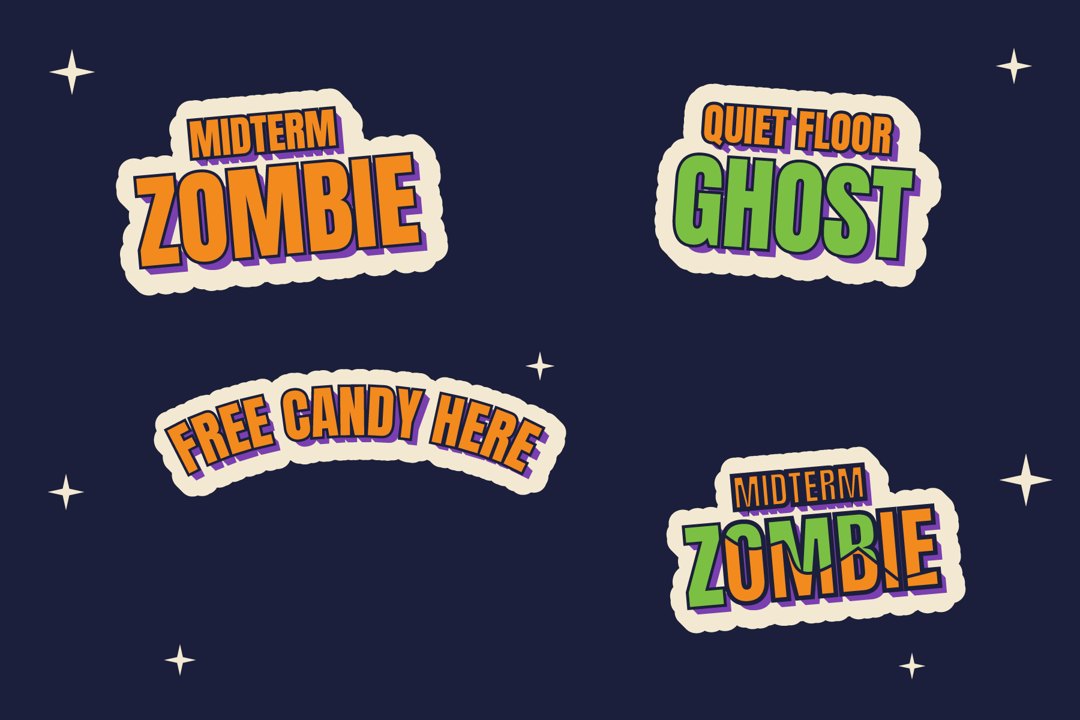
Everything sits on one 1800 by 1200 night-sky artboard: Midterm Zombie top left, Quiet Floor Ghost top right, the curved Free Candy Here bottom left, and the cracked copy in the lower part, near Free Candy Here.
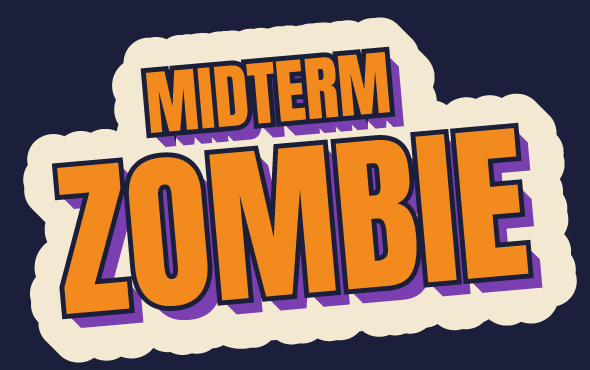
Sticker 1: Midterm Zombie
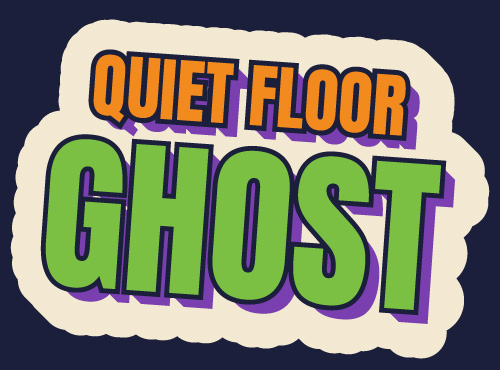
Sticker 2: Quiet Floor Ghost
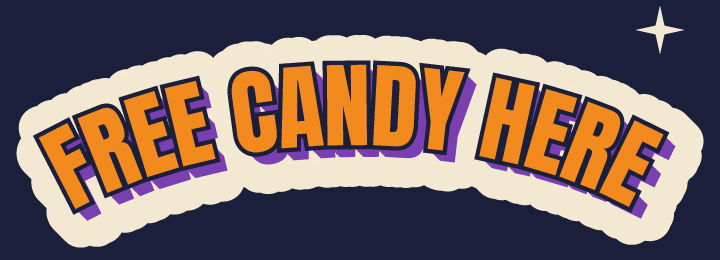
Sticker 3: Free Candy Here
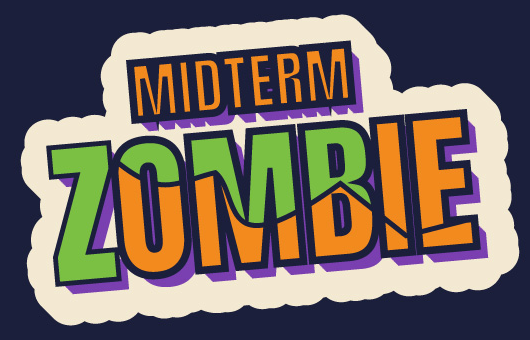
Sticker 4: the cracked copy
What your files should look like
These are exports from the finished project built in Illustrator 2026. Your font, tilt, and crack line will differ, and your cracked copy should be your own.
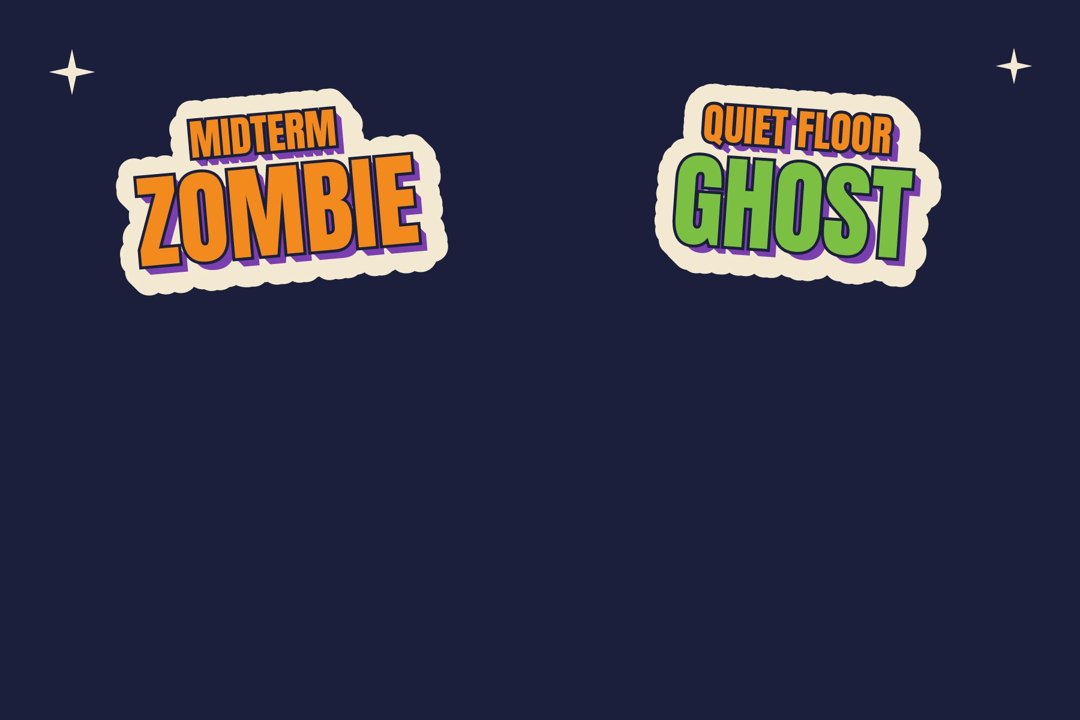
Midpoint example
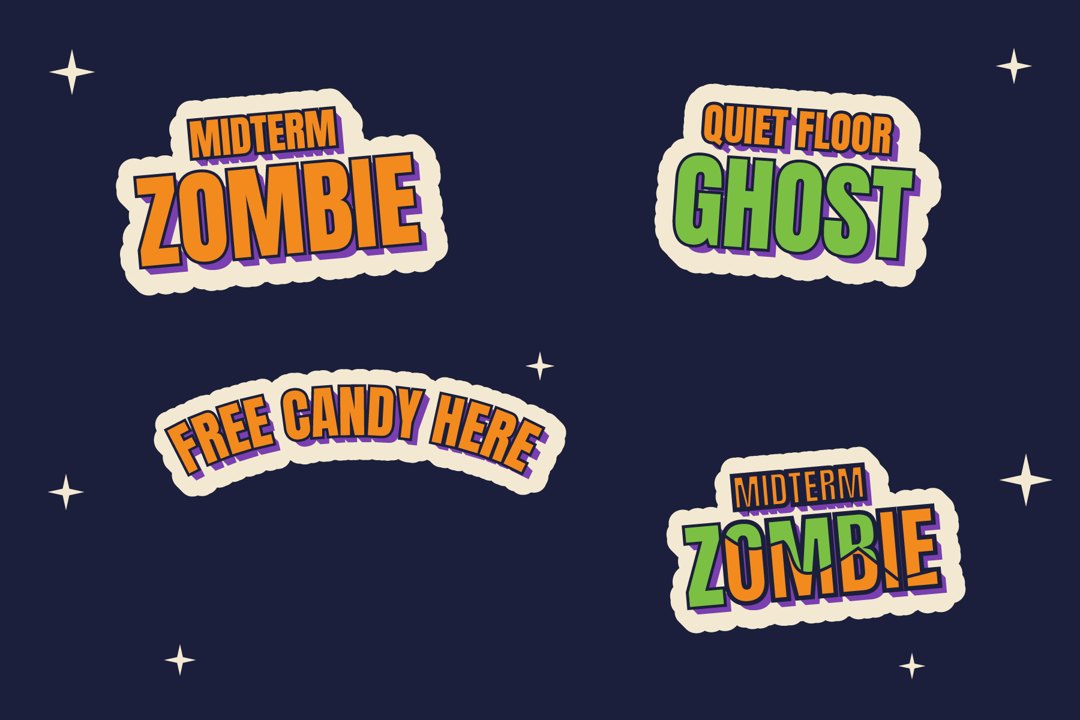
Final example
The class palette
Every color comes from these five. They are already loaded in the starter file's Swatches panel. To color a row, select the row in the Appearance panel, then click the swatch. Do not type hex codes on individual objects.
| Swatch | Name | Hex | Used on |
|---|---|---|---|
| Ink Navy | #1B1F3B | The night-sky background and the thin keyline around every letter | |
| Pumpkin | #F28A1E | Letter color | |
| Slime Green | #7BC043 | Letter color, and the two-tone recolor in Step 8 | |
| Grape | #7A3FB0 | The 3D block shadow | |
| Bone | #F3E9D2 | The die-cut sticker border and the sparkles |
Quick refresher: Photoshop to Illustrator
You have used layer styles in Photoshop. Here is how today's ideas map over.
| Photoshop | Illustrator |
|---|---|
| Type layer, then a Character panel | Type tool T and the Character panel (Ctrl+T / Cmd+T). Click once for a line of text. Dragging a box makes a text frame instead. |
| Group layers into a folder | Select both words and choose (Ctrl+G / Cmd+G). The style goes on the group, so both words share one border. |
| Layer Style: Stroke, Drop Shadow | Appearance panel (Shift+F6). Each fill, stroke, and effect is a row you can reorder. |
| Save a Layer Style, drop it on another layer | Graphic Styles panel (Shift+F5). Save the stack, click it on another sticker. |
| Rasterize Layer Style, then edit pixels | Object > Expand Appearance. The live rows become plain shapes you can cut and recolor. No going back, so expand a copy. |
| Smart Object fonts from Adobe Fonts | Same Adobe Fonts library. Click a font in the list and it activates. |
Class plan
| Start | Minutes | What | How |
|---|---|---|---|
| 0:00 | 2 | Opening: what makes a sticker read | Demo |
| 0:02 | 3 | Step 1: Open the starter file | Do along |
| 0:05 | 9 | Step 2: Type two lockups and group them | Do along |
| 0:14 | 10 | Step 3: Build the keyline, shadow, and border rows | Do along |
| 0:24 | 7 | Step 4: Block shadow and wobbly edge | Do along |
| 0:31 | 6 | Step 5: Save the Graphic Style, apply it, tilt | Do along |
| 0:37 | 3 | Step 6: Midpoint turn-in | Gate |
| 0:40 | 7 | Step 7: Bend sticker 3 along a curve | Do along |
| 0:47 | 17 | Step 8: Expand a copy, crack it, add chips | Do along |
| 1:04 | 3 | Step 9: Final export | Turn-in |
| 1:07 | Core ends. Midpoint and final turned in. | ||
| 1:07 | 6 | Step 10: Bonus arch with Effect > Warp | Bonus, ahead students only |
| 1:13 | Bonus ends. Optional steps. | ||
Steps
Open the starter file
about 3 min- Unzip
StickerSlap_StudentFiles.zip. In Illustrator choose (Ctrl+O / Cmd+O), go to the Starter Files folder, and openStickerSlap_Starter.ai. A navy night-sky artboard with cream sparkles opens. The background is locked, so you cannot move it by accident. - Choose . Set the format to Adobe Illustrator (ai). Name the file
LastName_StickerSlap.aiand click Save. Click OK in the options box. From now on you work in your own copy. - Set every unit to pixels so the numbers in this lesson match your screen. On Windows choose . On Mac choose . Set General, Stroke, and Type all to Pixels, then click OK. Every size, stroke weight, and offset in this lesson is in pixels.
- Open the Swatches panel with . Check that Ink Navy, Pumpkin, Slime Green, Grape, and Bone are in the list.
- Open the Appearance panel with (
Shift+F6) and the Graphic Styles panel with . Leave both open.
LastName_StickerSlap.ai, the artboard is the navy night sky, and your Swatches panel shows the five class colors.If not: If the colors are missing, load the backup: in the Swatches panel click the Swatch Libraries menu at the bottom left, choose Other Library, and open
StickerSlap_Swatches.ase from the Palette folder. If all your panels vanish, you pressed Tab: press Tab again.- Save As right away so you never work in the starter file itself.
- The Tab key hides every panel. Press Tab again to bring them back.
Type two lockups and group them
about 9 minBuild the first lockup
- Press
Tfor the Type tool. Click once in the upper left of the artboard. Click, do not drag. TypeZOMBIEin capital letters. To leave the text box, click the black arrow in the toolbar (the Selection tool). Do not press Esc and then type: the letters fire tool shortcuts. - With the word selected, open (Ctrl+T / Cmd+T). Click the font name field and type
Anton, or open the Discover More tab and click a tall, heavy display font. If nothing loads, useArial Black. Set the size to170px. - Press
Tagain, click above ZOMBIE, and typeMIDTERM. Click the black arrow. Set the same font at70px. Drag MIDTERM so it sits just above ZOMBIE, centered. This small-over-big stack is called a lockup. - Color the words: select each word with the black arrow and click Pumpkin in the Swatches panel. Both words in this lockup are Pumpkin.
- Select both words: click MIDTERM, then Shift+click ZOMBIE. Choose (Ctrl+G / Cmd+G). In the Properties panel, move the group to about
470X and320Y.
Optional shortcut: duplicate it for the second lockup
- Select the whole MIDTERM ZOMBIE group with the black arrow (
V). The Properties panel header readsGroup. - Duplicate the group: hold Option (Mac) or Alt (Windows) and drag the group to the upper right, then release the mouse before the key. Or choose , , and drag the copy. Set the duplicate to about
1330X and320Y in Properties. You should now see two identical lockups. - Change the words in the duplicate. Press
T, click into MIDTERM, press Ctrl+A / Cmd+A to select that word, and typeQUIET FLOOR. Click into ZOMBIE the same way and typeGHOST. Click the black arrow. QUIET FLOOR is wider than MIDTERM, so drag it until it sits centered over GHOST. - Recolor GHOST. Press
Afor the Direct Selection tool, click GHOST, and click Slime Green in the Swatches panel. QUIET FLOOR stays Pumpkin. - Confirm you have two separate groups. Click each lockup with the black arrow: only that lockup should be selected, and the Layers panel should list two
<Group>rows.
If not: If clicking a word selects only that word, the group is missing: select both and press Ctrl+G / Cmd+G. A small red plus at the corner of a word means area type with hidden text: delete it and click, do not drag.
- Click, do not drag.
- Group the two words. The style in Step 3 goes on the group, not on each word.
Build the keyline, shadow, and border rows
about 10 min- Click the Midterm Zombie group with the black arrow (
V). The Appearance panel header readsGroupwith one row,Contents. - Click the Add New Fill button at the bottom of the Appearance panel. A Stroke row and a Fill row appear above Contents, and your letters disappear under a black fill. That is expected.
- Drag the Contents row to the top of the list. Grab it by the empty space on the right side of the row, not by the word. The letters come back.
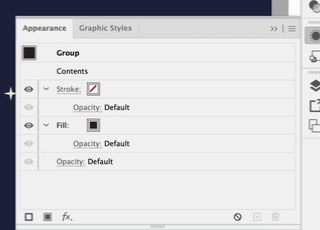
After Add New Fill and dragging Contents to the top - Click the Stroke row right under Contents. Set its color to Ink Navy and its weight to
10px. This is the keyline around every letter. - Click the Fill row under it and set it to Grape. This becomes the block shadow in Step 4.
- Click Add New Stroke (the first icon at the bottom). Drag the new Stroke row to the very bottom of the list. Set it to Bone and
50px. Open and click Round Cap and Round Join. This is the die-cut sticker border.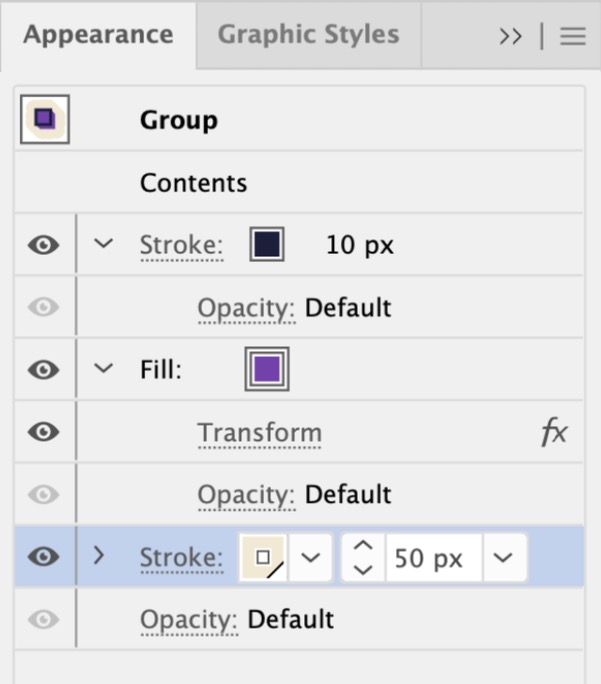
The four rows in order: Contents, Stroke 10 px, Fill Grape, Stroke Bone 50 px 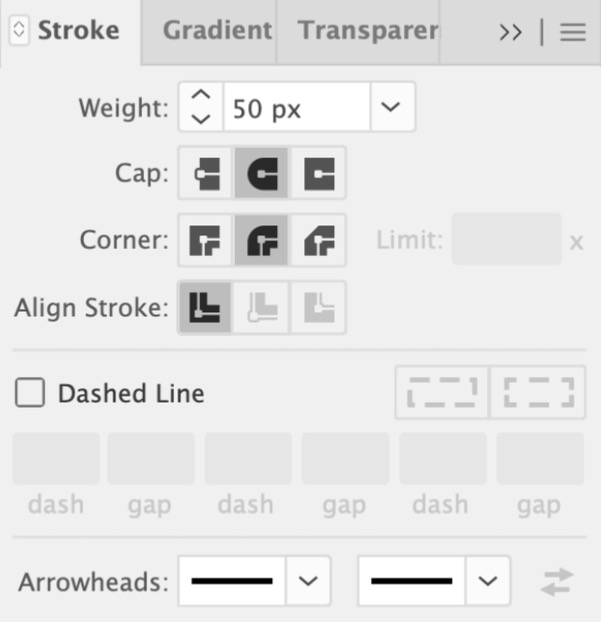
Window > Stroke: Round Cap and Round Join
If not: If the letters are hidden, Contents is not at the top: drag it up. If the cream border covers the letters, the Bone Stroke is not at the bottom: drag it down.
- Row order is the whole trick: top row paints on top.
- Select a row before you change a color. The color goes to the selected row only.
Block shadow and wobbly edge
about 7 min- Click the Grape Fill row. Click the fx button at the bottom of the panel, hover over Distort & Transform, and choose Transform. Set Move Horizontal to
1px and Vertical to1px. At the bottom, set Copies to14. Click OK. Fourteen 1-pixel steps stack into a solid 3D block shadow.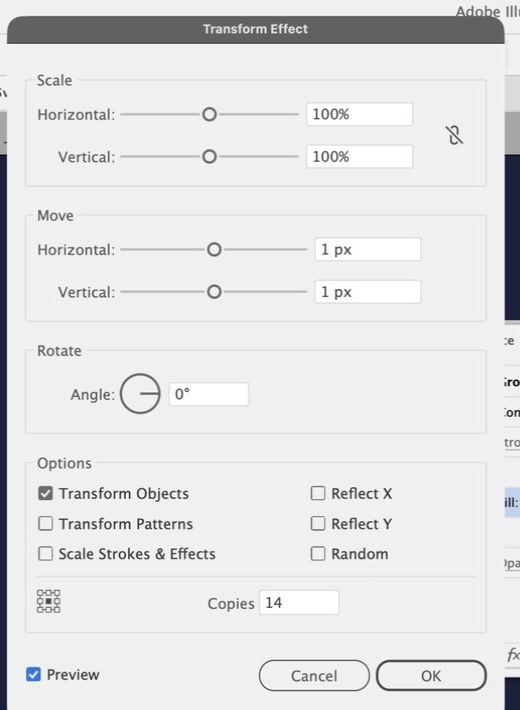
Transform: Move 1 px and 1 px, Copies 14 at the bottom 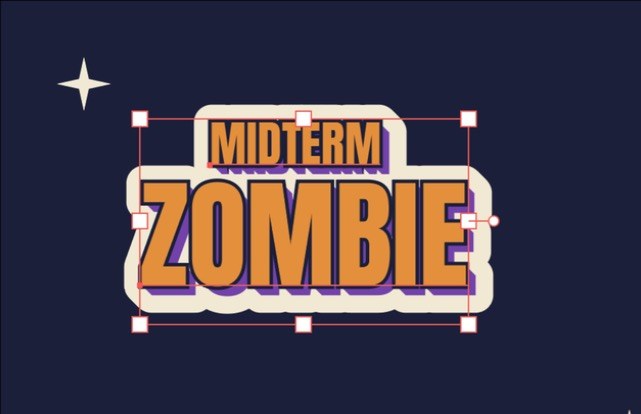
Block shadow and border after both Transforms - Click the Bone Stroke row at the bottom. Click fx, then Distort & Transform, then Transform again. The same values come up:
1,1, and14copies. Click OK. The cream border now grows with the shadow, so the shadow never pokes out. - With the Bone Stroke row still selected, click fx, then Distort & Transform, then Zig Zag. Leave Size at
10px and Ridges at4. Under Points choose Smooth. Click OK. The border edge turns into a soft, wobbly cloud.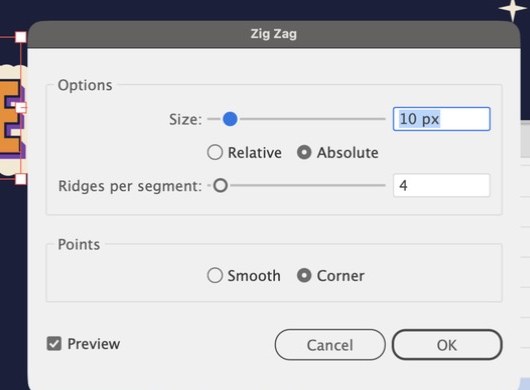
Zig Zag opens on Corner. Switch Points to Smooth 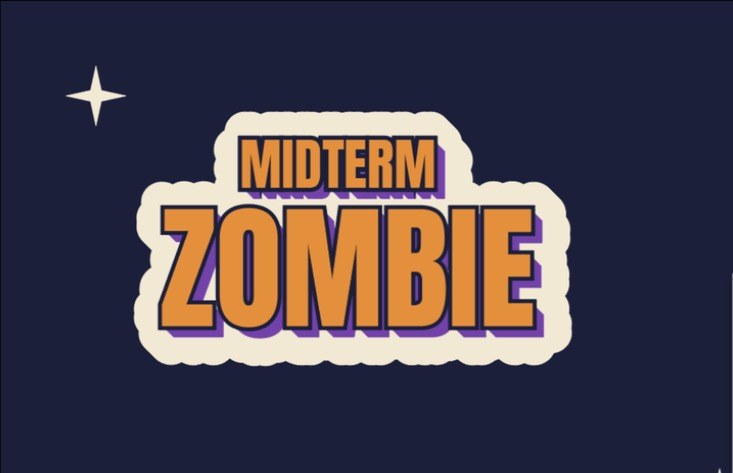
The finished cloud border
If not: If the shadow looks like a faint double image, Copies is still 0: reopen Transform from the row and set 14. If the border edge is spiky, Points is on Corner: reopen Zig Zag from the row and choose Smooth.
- Click the row before the fx button. The effect belongs to the selected row only.
- Copies is at the bottom of the Transform box. Without it, there is no 3D block.
Save the Graphic Style, apply it, tilt
about 6 min- Select the Midterm Zombie group. Open the Graphic Styles panel menu (the lines at its top right) and choose New Graphic Style. Name it
Sticker Slapand click OK. A new thumbnail appears. - Select the Quiet Floor Ghost group with the black arrow. Click the Sticker Slap thumbnail. The whole look lands in one click, and each word keeps its own color.
- Tilt the stickers a little, like they were slapped on by hand. Select the whole Midterm Zombie group with the black arrow and set its angle to
5degrees. Use either method. Properties panel: type5in the Rotate angle field under Transform and press Return. Menu: choose , type5in Angle, check Preview, and click OK. Both give the same tilt. - Select the whole Quiet Floor Ghost group and set its angle to
-4the same way. If nothing turns, click in the field and press Return again.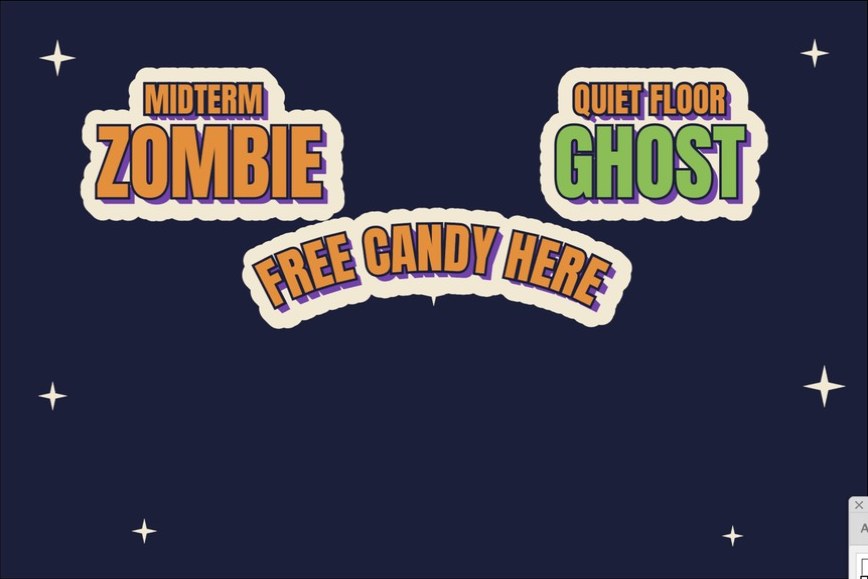
Every sticker carries the same Sticker Slap style - Check the tilt on each complete sticker. Click the group and look at the selection box: the whole lockup, shadow and border included, leans as one piece, and the Appearance header still reads
Group: Sticker Slap.
Group: Sticker Slap.If not: If the second sticker turned all Grape, you applied the style to a single word, not the group. Undo, click the group with the black arrow, and apply again.
- Select the group first, then click the thumbnail.
- Tilt small: 3 to 6 degrees.
Midpoint turn-in
about 3 minturn-in- Choose . Set the format to JPEG. Name the file
LastName_TwoStickers.jpg. Check Use Artboards. Click Export. - In the JPEG Options box, set Quality to High and Color Model to RGB. Click OK.
- Upload
LastName_TwoStickers.jpgto Canvas under the midpoint assignment.
LastName_TwoStickers.jpg shows both stickers on the night sky.If not: If a sticker is cut off, it hangs past the artboard edge: move it in and export again.
- Name the file with your last name first.
- Wait 1 to 2 seconds after the dialog opens before typing.
Bend sticker 3 along a curve
about 7 min- Press
Lfor the Ellipse tool and drag any ellipse in empty space. Click the black arrow. In Properties set Width900, Height480, X900, Y800. In the toolbar set Fill to None and Stroke to None. The ellipse seems to vanish, which is expected. To see it, switch to (Ctrl+Y / Cmd+Y), then use the same shortcut to return to Preview. - Click and hold the Type tool in the toolbar and choose the Type on a Path Tool. Move the pointer onto the edge of the ellipse until a small wavy line appears beside it, click, and type
FREE CANDY HERE. Click the black arrow. The words now follow the ellipse. Illustrator may put them on the lower arc or off to one side. The next steps fix that. - Set the font to the same heavy font at
110px and the color to Pumpkin. Open and click Align Center. This centers the words within the stretch of path they occupy, so the gaps at both ends match. It does not move the words to the top. Do not confuse it with and Align to Path: Center, which only controls how the letters sit against the path line. Leave that one alone.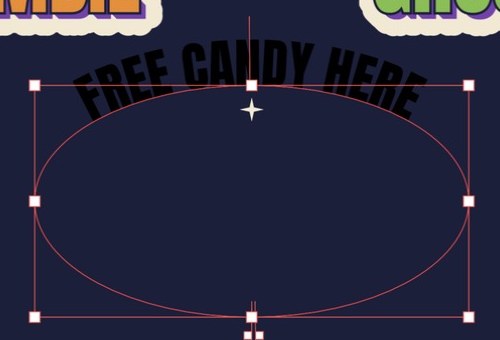
Alternative start: Option or Alt click the bottom point, then Align Center. The words ride over the top 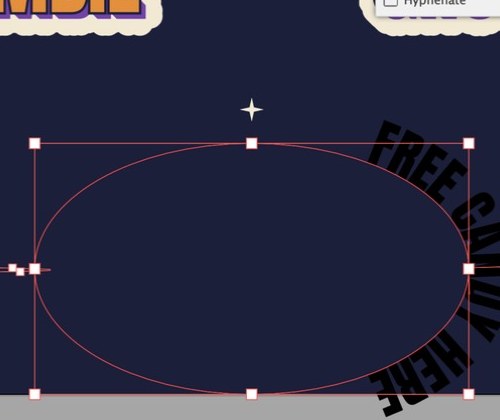
Left-point click plus Align Center: the words land on the side - With the type-on-path object still selected, find the center bracket, the short vertical line in the middle of the text. Hold Ctrl / Hold Command and drag it slowly along the ellipse until the words sit on the upper arc. Holding the key keeps the words from flipping sides while you slide them. If the words end up upside down or inside the curve, drag the center bracket across the path to flip them to the other side.
- Fit the words to the arc. Change the type size in Properties if needed, and drag the start and end brackets (the vertical lines at each end of the text) in or out. A good result is readable, upright letters following the upper curve with about the same empty space at both ends.
- Choose (Ctrl+G / Cmd+G) with the path text still selected. Group first, then style. Click the Sticker Slap thumbnail. Drag the curved sticker to the lower left, below the two main stickers, so it does not touch them.
If not: If the words sit on the bottom arc or upside down, drag the center bracket across the path, then Ctrl / Cmd-drag it along the path to the top. If the ellipse or the brackets are hard to see, switch to View > Outline for a moment, then back to Preview. To restart cleanly, undo, then Option or Alt click the ellipse's bottom center point with the Type on a Path tool, retype, and click Align Center: that landed the words over the top in testing. If the letters turned Grape when you clicked the style, you skipped the group: undo, group, then click the style.
- Align Center centers the words. The center bracket decides which arc they sit on.
- Group the path text before you apply the style.
Expand a copy, crack it, add chips
about 17 minParts A to D build the big green and orange break. Part E is a separate pass: small chips cut out of the letters. Only the copy is ever outlined or cut. The three originals stay live.
A. Preserve the editable sticker
- Select the whole Midterm Zombie sticker group with the black arrow. Choose , then (Ctrl+F / Cmd+F). Do this before converting any type. Nothing seems to change, because the copy sits exactly on top of the original.
- With the copy still selected, drag it down to the lower part of the artboard, below Free Candy Here. The original stays where it was.
- Lock the original and the nearby stickers so you cannot grab them by accident. Click Midterm Zombie, Shift+click Quiet Floor Ghost, Shift+click Free Candy Here, then choose (Ctrl+2 / Cmd+2). The copy stays unlocked. Helpful: open , double-click the copy's name, and rename it
Cracked copy. - From here on, only the copy is converted into plain shapes. The original stays a live styled sticker, so you can still change its text or restyle it later.
B. Prepare the copy's shapes
- Click the copy to select it. Choose (Ctrl+Shift+O / Cmd+Shift+O). Selecting the group is enough: Illustrator outlines the type inside it. The Appearance header still reads
Group: Sticker Slap, so the style is still live.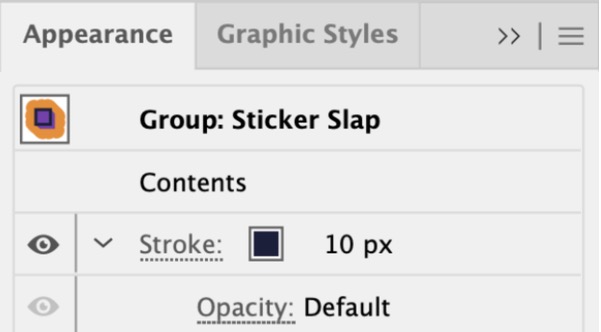
After Create Outlines the header still reads Group: Sticker Slap - With the copy still selected, choose . The Appearance panel now shows only
GroupandContents, and the sticker looks the same. The keyline, shadow, and border are now real shapes instead of live effects. Illustrator may show a progress bar for a few seconds. Open the Layers panel and expand the copy: it now holds four sub-groups. From front to back they are the orange letter faces, the navy keyline, the purple shadow copies, and the cream border copies.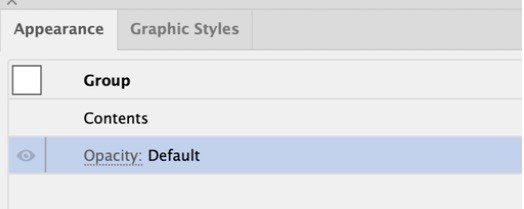
After Expand Appearance: no rows left - Only if needed: if one fill or stroke still behaves like a live line (you cannot recolor it as a shape, for example), select just that part and choose . Check Fill or Stroke in the dialog, whichever applies, and click OK. A stroke becomes a filled shape and the result is a group. To confirm it worked, press Ctrl+Y / Cmd+Y for Outline view: an expanded stroke shows an extra outline ring around the shape. Press the same keys again to return to Preview. Do not expand everything repeatedly.
- Find the parts you will edit. Press
Afor the Direct Selection tool and click an orange letter face: only that face highlights, with no cream backing or purple shadow selected along with it. Each letter face is one compound path, so a letter with a hole (like O) is a single piece. Do not ungroup the copy. Part C selects the cream border by its sub-group in the Layers panel, and the Knife, recoloring, and chips all work on faces selected this way. If the black arrow selects the whole sticker, that is expected: switch toA.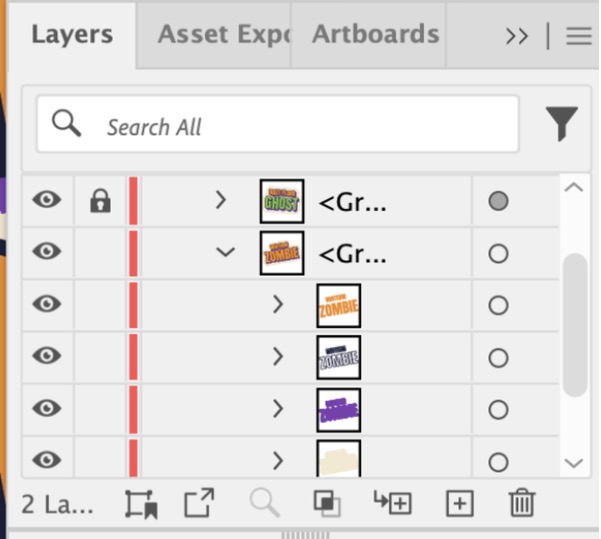
The expanded copy in the Layers panel: faces, keyline, shadow, and the cream border sub-group
C. Combine the cream border
- Select the copy's cream border pieces from the Layers panel. Open . Click the arrow next to the layer, then the arrow next to the copy's group (it reads
<Group>, or Cracked copy if you renamed it in Part A). Inside it are four sub-groups, top to bottom: letter faces, navy keyline, purple shadow, and cream border. The thumbnails show which is which. Click the round target circle at the right end of the cream sub-group's row. The Properties panel should show a Group with no fill and a 50 px stroke. Do not try to click the cream border on the artboard: after Expand Appearance it is a wide stroke with no fill, and clicking the cream area selects nothing. - Choose . Illustrator shows a progress bar for several seconds. Each border stroke becomes a filled shape, and the Properties panel now shows a cream fill and no stroke.
- Open and click Unite, the first button under Shape Modes. The overlapping border pieces merge into one cream shape. The Properties panel header changes to
Path. - Check the result. The cream shape should sit behind the lettering, keep its wobbly outline, and have no gaps. Because you selected the cream sub-group from the Layers panel, it stays behind the letters on its own. If it ever covers the letters, choose (Ctrl+Shift+[ / Cmd+Shift+[).
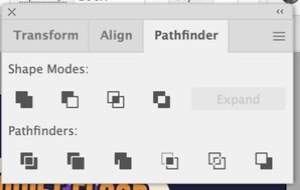
Pathfinder panel: Unite is the first Shape Modes button
D. Make the main crack
- Select only the front faces of the ZOMBIE letters, not the cream border or the purple shadow. Press
Afor the Direct Selection tool, click one orange ZOMBIE letter, then Shift+click the other five. Avoid a document-wide unless you check the result, because MIDTERM is orange too. (With the originals locked, that command also works: it picks every orange face on the copy, MIDTERM included. It is safe as long as your Knife line stays inside ZOMBIE.)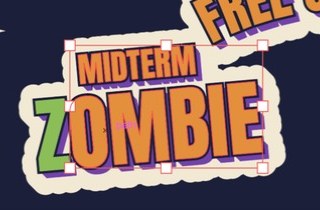
The Select > Same > Fill Color shortcut picks every orange face of the copy, MIDTERM included - Find the Knife. It shares a toolbar slot with the Eraser and Scissors: press and hold that tool and choose Knife, or Option (Mac) or Alt (Windows) click the tool icon until the status bar at the bottom of the window reads Knife. Drag one irregular, roughly horizontal line across ZOMBIE from its left edge to its right edge, changing height a little as it crosses each letter so the break looks torn, not ruled. Release the mouse. Each letter the line crossed is cut in two.
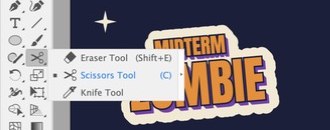
The Knife shares a toolbar slot with Eraser and Scissors - While the cut pieces are still selected, set the Stroke to Ink Navy and the weight to
5px in the Properties panel. Every cut edge now reads as a dark crack. If a line looks doubled or too heavy where a piece meets the navy keyline, select that piece and set its Stroke to None.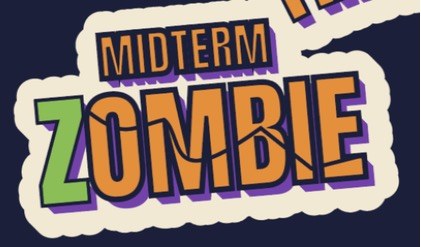
A 5 px Ink Navy stroke turns the cuts into a crack - Press
Aand click the pieces one at a time to confirm each cut letter now has a top piece and a bottom piece. Apply the stroke to any piece that missed it. - Recolor the break. Click one piece above the crack, then click Slime Green in the Fill swatch of the Properties panel. Repeat for every piece above the crack, one at a time, and make the entire Z Slime Green. Leave the pieces below the crack Pumpkin. Shift+click is fiddly on small pieces.
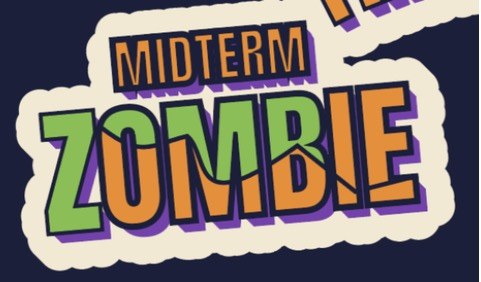
Two-tone: every piece above the crack in Slime Green - Zoom out (Ctrl+minus / Cmd+minus) and look at the word. It should still read ZOMBIE, with the green and orange areas forming one coherent break.
E. Add the extra distressed chips
- This is a second, separate pass. The main crack is one long cut. Chips are small pieces taken out of a few letters. Zoom in on one ZOMBIE letter with Ctrl+plus / Cmd+plus. Press
Aand click one colored face piece of that letter. - With that piece selected, choose the Knife and make a short angled or curved cut near an outer edge, or across a small corner. Press
A, click the small separated piece, then press Delete to remove it, or drag its anchor points to reshape it into a notch. The navy keyline and purple shadow sit underneath, so the notch shows dark navy and purple, not the cream.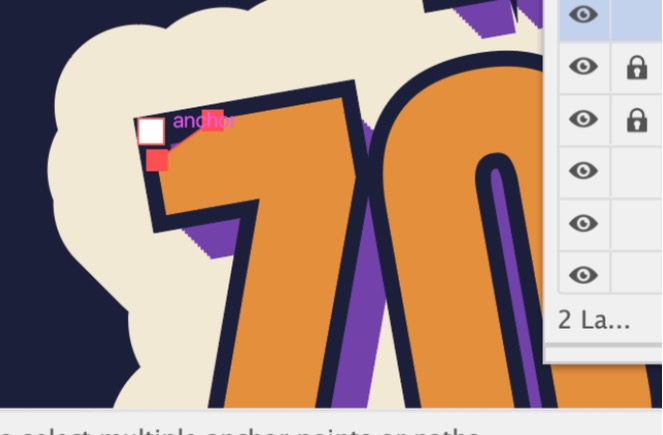
One Knife chip removed from the corner of the Z - Repeat sparingly on other letters, such as the O, M, B, and E. Mix small wedges, thin slits, and irregular bites. Vary direction and size so the marks look hand-made.
- Let the purple shadow show through some openings. Keep each letter's dark edge so the letter stays readable. If a chip makes a letter hard to recognize, undo it.
- Keep every cut on a letter face. Do not cut through the cream border. The Knife only cuts what is selected, so select the face first.
- Optional, for an exact notch: draw a small triangle or irregular shape with the Pen tool (
P) over the edge of one letter face: click three corners, then click the first point again to close it. The shape lands on top as its own path. PressA, Shift+click the letter face so both are selected, then click Minus Front in the Pathfinder panel, the second button under Shape Modes. The shape's area is cut out of the face. Shape Builder (Shift+M) also works: with the shape and the letter face both selected (select them first, Shape Builder does not select for you), hover the overlap until it shows a dotted mesh, then Option or Alt click it. The overlap is cut out of the face, but the part of your shape that sticks out past the letter stays behind as a loose piece: pressA, click it, and press Delete. Minus Front does all of this in one click, so start there. Use Minus Front for precise chips and the Knife for freeform damage.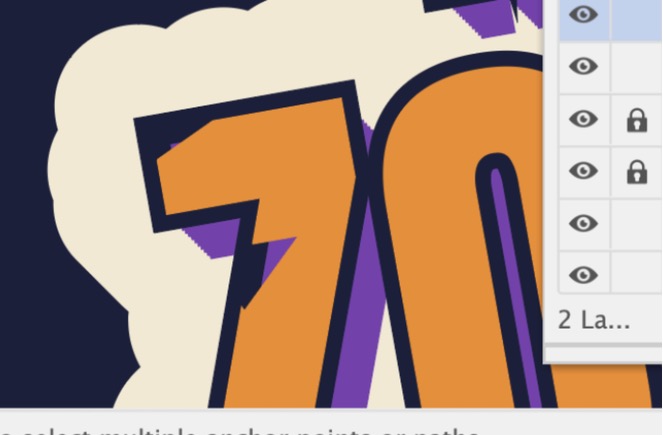
A Minus Front notch: the purple shadow shows through
F. Clean up and position
- Zoom in on each edited letter and look for stray fragments, awkward points, doubled dark strokes, and accidental color changes. Fix them with the Direct Selection tool, Delete, or Undo.
- Zoom out to about the size the sticker will have in your exported JPEG. Remove or simplify marks that disappear into noise, but keep the main crack and several visible chips.
- Place the finished cracked sticker in the lower part of the composition, below or beside Free Candy Here. The exact spot is your call, as long as it sits inside the artboard and does not touch the other stickers.
Sticker Slap. The cracked copy has a torn crack through ZOMBIE, Slime Green above it and Pumpkin below, plus a few small chips taken out of the letters.If not: If the artboard turns gray and faded, you double-clicked into Isolation Mode: press Esc or click the arrow at the top left of the window. If the Knife cut everything into a mess, nothing was selected: undo, select the letter faces first. If an original sticker lost its style, you expanded the original: undo until it reads Sticker Slap again. If clicking a letter also selects the cream or purple behind it, you are on the black arrow: press A and click again. If a tool does nothing, check that the piece is not locked.
- Copy and lock first. Once you expand and keep working, the live style on that copy is gone.
- The Knife only cuts what is selected when something is selected. Select the letter faces first.
- The main crack and the chips are two passes. Finish the crack before the chips.
Final export
about 3 minturn-in- Click empty gray space, or press Ctrl+Shift+A / Cmd+Shift+A, so nothing is selected.
- Choose . Set the format to JPEG. Name the file
LastName_StickerSlap.jpg. Check Use Artboards. Click Export. Set Quality to High and Color Model to RGB. Click OK. - Upload
LastName_StickerSlap.jpgto Canvas. Keep yourLastName_StickerSlap.aifile. Do not upload it.
LastName_StickerSlap.jpg shows all four stickers on the night sky.If not: If the copy is missing, it is on the gray pasteboard: drag it onto the artboard and export again.
- Anything on the pasteboard does not export.
- File name starts with your last name.
Bonus arch with Effect > Warp
about 6 minbonus- Choose . Select the Quiet Floor Ghost group.
- Choose . Check Preview while you adjust. Choose Horizontal and set Bend to
20%. Click OK. - Look at the Appearance panel. A Warp: Arc row appears. The letters, shadow, and border all bend together.
If not: Warp breaks the link to the Graphic Style for that sticker, which is fine.
- The dialog can appear 1 to 2 seconds late.
Final checklist
- I have four stickers on the night-sky artboard.
- Midterm Zombie and Quiet Floor Ghost are small-word-over-big-word lockups, each grouped.
- Every styled sticker has a navy keyline, a Grape block shadow, and a cream wobbly border.
- Free Candy Here reads upright along the top of a curve.
- Three stickers use the same Sticker Slap Graphic Style.
- The fourth sticker is an expanded copy with a main crack, a two-tone recolor, and a few small chips cut out of the letters.
- I exported with Use Artboards and the file name starts with my last name.
- I uploaded the JPEG, not the .ai.
Optional steps
Finished early? Do these in any order.
Change the border color two ways
about 6 min- Choose . Option 1: a green border on chosen stickers only. Select one styled sticker, click its Bone Stroke row in the Appearance panel, and click Slime Green. That sticker's border is now green and the others are unchanged. The Appearance header drops the style name and reads plain
Group, because the sticker no longer matches the style. - Save the green version as its own style: with that sticker selected, open the Graphic Styles panel menu, choose New Graphic Style, and name it
Sticker Slap Green. (The panel's New Graphic Style button also works, but it names the styleGraphic Style: double-click the thumbnail to rename it.) The Appearance header now names the new style. Apply it only to the stickers that should have a green border. Stickers that keep the Sticker Slap style keep their cream border. - Option 2: change every sticker that uses the style. Select a sticker that is still linked to
Sticker Slap. Change its Bone Stroke row to the new color. With that sticker still selected and the Appearance header naming the style to replace, open the Appearance panel menu and choose Redefine Graphic Style "Sticker Slap". The header returns toGroup: Sticker Slap, and every sticker still linked to that style updates together. - Check the results. Applying a second style to one sticker does not redefine the first style for the others. Only Redefine does that. The cracked copy is made of edited paths, so it has no style link: change its border color by hand.
The reference sheet is a real Illustrator export of the finished project: three styled stickers plus the cracked, two-tone copy in the lower part of the sheet.
Troubleshooting
| Problem | Fix |
|---|---|
| My letters disappeared when I clicked Add New Fill. | On a group, new rows land above Contents. Drag Contents to the top of the Appearance panel. |
| The border covers the letters. | The Bone Stroke row is not at the bottom. Drag it below the Grape Fill. |
| The shadow is a faint double image, not a block. | Copies in the Transform box is 0. Click the Transform row under the Grape Fill and set Copies to 14. |
| The border edge is spiky. | Zig Zag Points is on Corner. Reopen Zig Zag from the Bone Stroke row and choose Smooth. |
| The style turned my letters Grape. | You applied it to type, not a group. Undo, group the words, then apply. |
| My curved words sit on the bottom arc, the side, or upside down. | Drag the center bracket across the path to flip them, then Command-drag (Ctrl on Windows) the bracket along the path to the top. Paragraph > Align Center only centers the words in their span. To restart, undo, Option or Alt click the ellipse's bottom point with the Type on a Path tool, and click Align Center. |
| I cannot see the ellipse or the brackets. | Switch to View > Outline for a moment, then back to Preview. |
| Clicking a letter selects the whole copy, or the cream and purple come along. | You are using the black arrow. Press A for Direct Selection and click the letter face. Do not ungroup: Part C needs the sub-groups. |
| My chips cut through the cream border. | Undo. Select only the letter face before you use the Knife, because the Knife only cuts what is selected. |
| The artboard went gray and faded. | You double-clicked into Isolation Mode. Press Esc or click the arrow at the top left of the window. |
| All my panels vanished. | You pressed Tab. Press Tab again. |
| The Knife made a mess of the whole sticker. | Nothing was selected, so it cut every layer. Undo, select the ZOMBIE letter faces, then Knife. |
| I cannot see the crack. | The cut pieces still touch. With them selected, give them an Ink Navy 5 px stroke. |
| Select Same picks letters on my other stickers. | Lock the three originals first: select them and choose Object > Lock > Selection. |
| I cannot find the Knife. | It shares a toolbar slot with the Eraser and Scissors. Press and hold that tool and choose Knife, or Option or Alt click the icon until the status bar reads Knife. |
| Adobe Fonts will not load. | Use Arial Black or Impact. |
| The export is cut off. | Check Use Artboards, and check that every sticker sits inside the artboard. |
What this project was actually about
Today the artwork is lettering, and the look is a stack of rows you can reorder, edit, and reuse. Illustrative letterers build stickers this way: hierarchy from a small word over a big one, a keyline, a block shadow, and a die-cut border. Next week you will map flat art onto a mug, and in the capstone you will use the same stack to build a wordmark for your own brand.
Tools used
- Type tool (point type), Character and Paragraph panels
- Adobe Fonts (Discover More)
- Object > Group and Object > Lock
- Appearance panel: add fills and strokes on a group, reorder, add effects to a single row
- Effect > Distort & Transform > Transform (with Copies) and Zig Zag
- Graphic Styles panel: save, apply, redefine
- Type on a Path tool, Paragraph Align Center, and the center bracket
- Create Outlines and Object > Expand Appearance
- Layers panel targets, Direct Selection, Outline Stroke, Pathfinder Unite and Minus Front
- Knife tool
- Effect > Warp (bonus)
- Export As JPEG with Use Artboards