Brush Lab: Coffee Label
In Trick or Trace you used a Scatter brush. Today you build two more kinds of brush and finish a coffee label that looks like it came off a shelf. The first hour is the brush lab: mirror the leaves, cut a bean, make and test a Steam Art Brush, then make, test, and edit a Round Beads Pattern Brush. In the last 15 minutes you finish the label with type, including words on a curve, and export the final JPEG.
Shortcuts are written Windows / Mac. Example: Ctrl+G / Cmd+G. On a Mac, Option is the key some Windows lists call Alt.
We build together. Follow along step by step. When you finish a step early, wait at the check line or try the bonus and the optional step at the bottom.
What you turn in
- Midpoint (Step 6):
LastName_Steam.jpg: a JPEG of the label with both leaf sprays, the split bean, and three curls of steam painted with your Steam brush. - Final (Step 11):
LastName_CoffeeLabel.jpg: a JPEG of the whole label: leaves, bean, steam, round bead border, and type. Keep yourLastName_CoffeeLabel.aifile for yourself. Do not upload it.
Downloads
BrushLab_StudentFiles.zip: the one download for today. Unzip it before Step 1.BrushLab_Starter.ai: inside the zip, in the Starter Files folder. It has the label, one leaf spray, dashed guides, the Steam brush art, one bead, and five class swatches.BrushLab_Swatches.ase: inside the zip, in the Palette folder. A backup of the same five colors.
Brush skills to practice
- Make an Art Brush from a shape and explain which part stretches along a path.
- Make a Pattern Brush from a tile and explain why its boundary controls the repeat.
- Apply each brush to a new path, then edit one brush and explain why its strokes update together.
What we build today
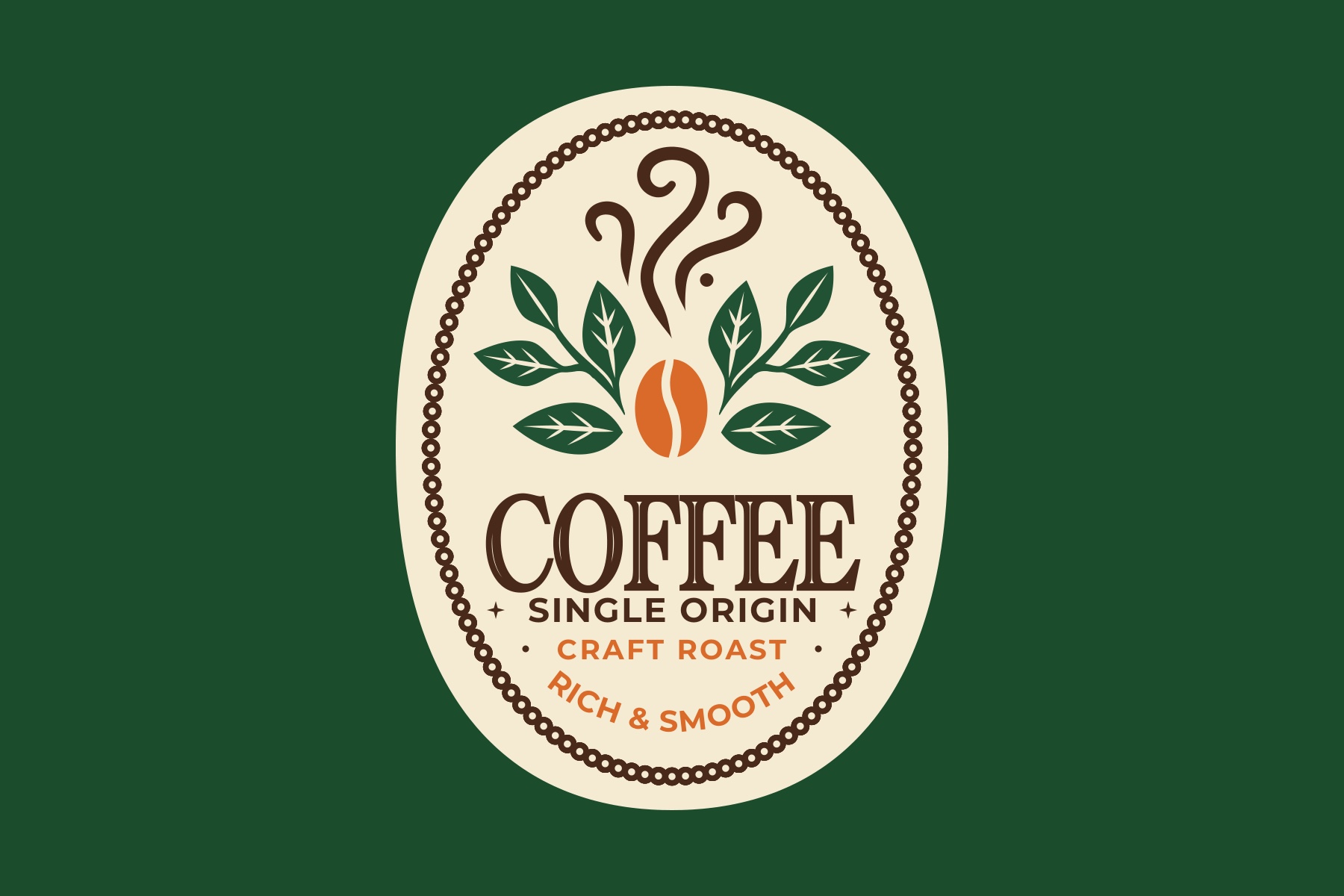
Everything sits on one 1800 by 1200 artboard: a cream oval label on forest green. The steam, the bean, and the leaves fill the top half, the type fills the bottom half, and one row of round beads runs inside the cream edge.

Leaves and bean
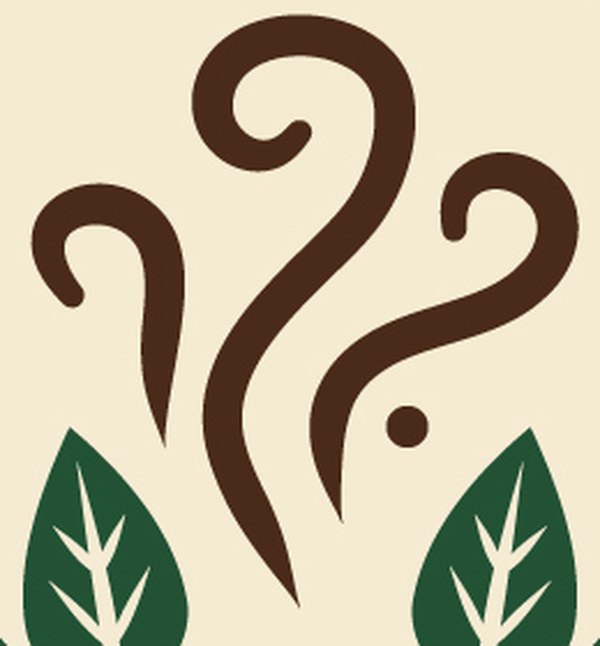
The steam
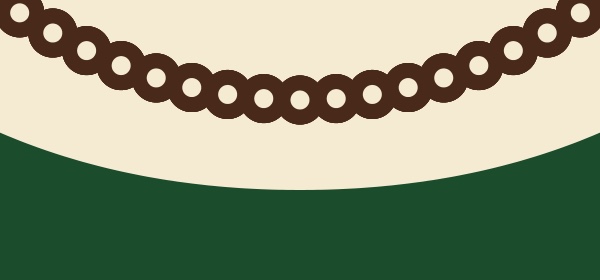
Round bead border
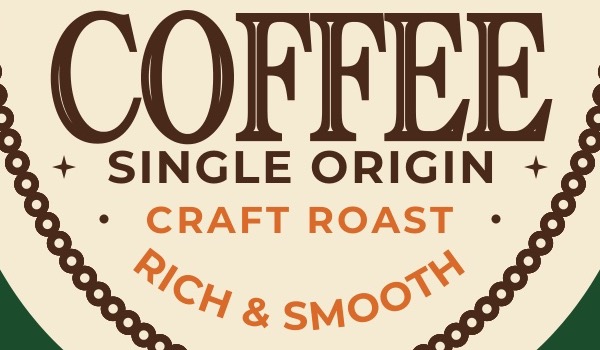
The type
What your files should look like
These are exports of the finished project, built in Illustrator 2026. Your steam curls and crease will differ a little because you draw them by hand. The midpoint example is the same file with the border and the type hidden.
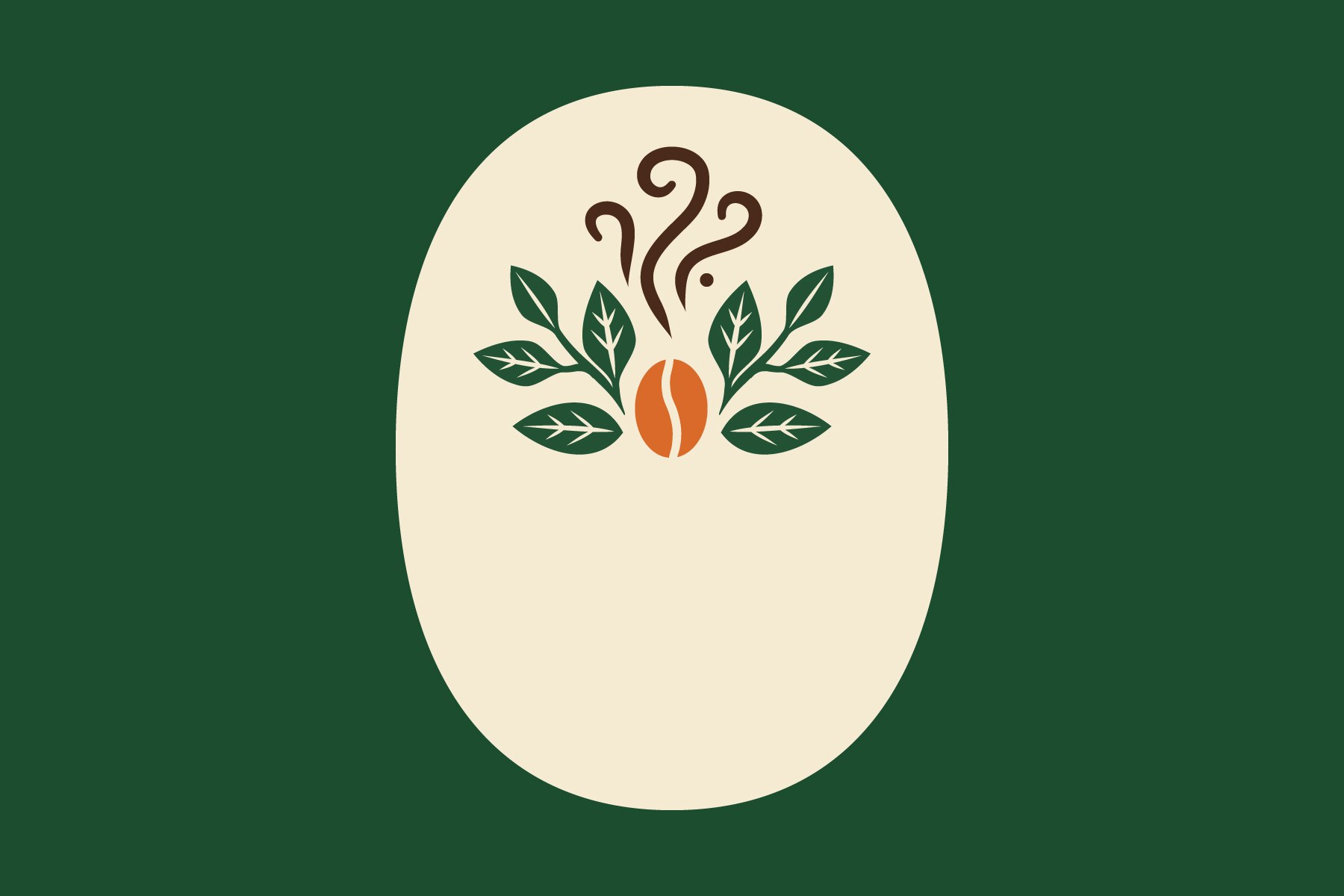
Midpoint example
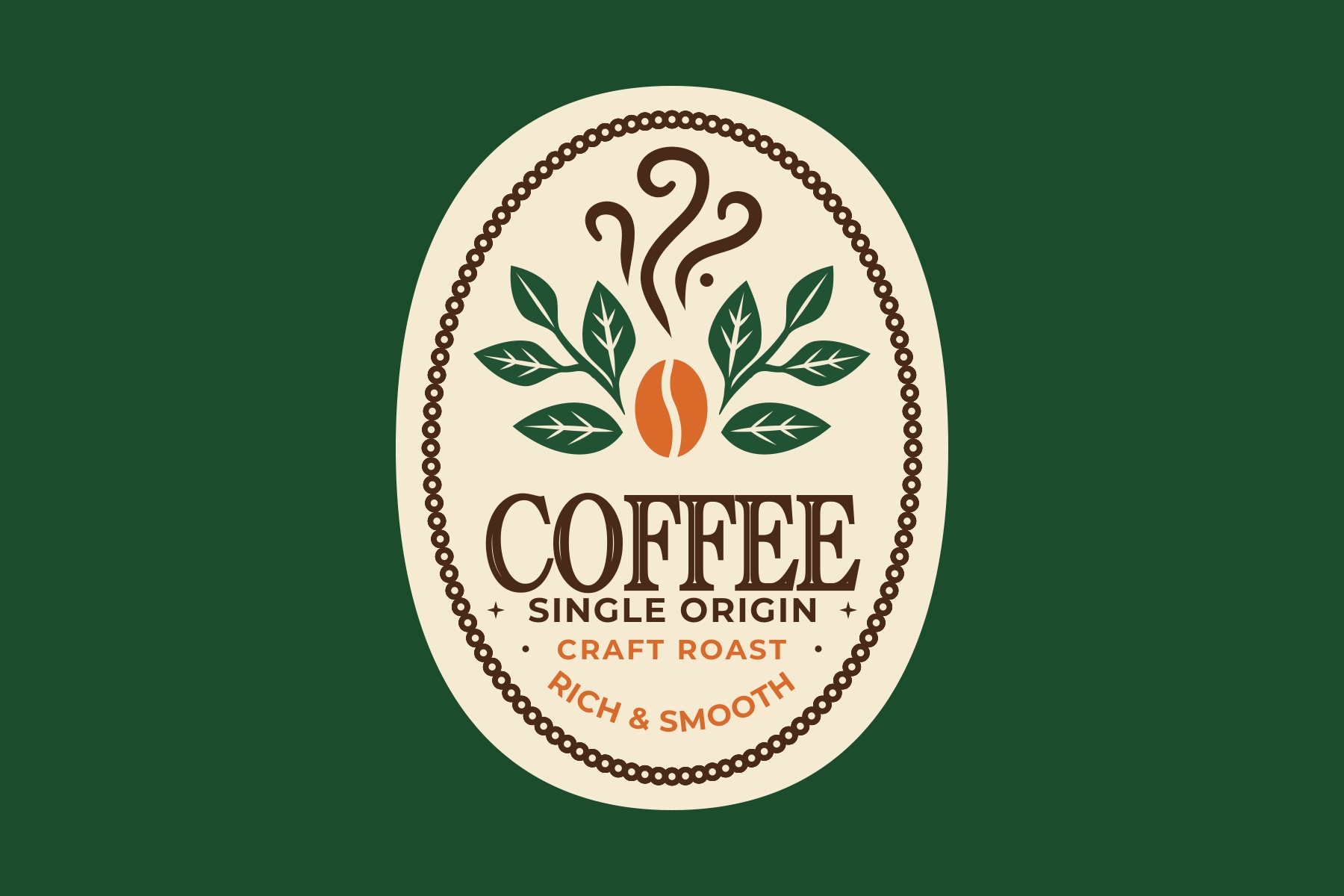
Final example
The class palette
Every color comes from these five. They are already loaded in the starter file's Swatches panel. To color a shape, select it and click the swatch. Do not type hex codes on individual shapes.
| Swatch | Name | Hex | Used on |
|---|---|---|---|
| Cream | #F5EBD3 | The label, the bean crease, and the leaf veins | |
| Forest | #1B4D2E | The background (locked) | |
| Espresso | #4A2A1A | The steam, round beads, COFFEE, and SINGLE ORIGIN | |
| Roast Orange | #D96A29 | The bean, CRAFT ROAST, and RICH & SMOOTH | |
| Leaf | #225234 | The leaves and stems |
Quick refresher: Photoshop to Illustrator
You have used brushes in Photoshop. Here is how today's ideas map over.
| Photoshop | Illustrator |
|---|---|
| Brush Tool and the Brush Settings panel | Paintbrush tool B, Pencil tool N, and the Brushes panel (F5). Click a brush in the panel to apply it to the selected path. |
| Define Brush Preset from a selection | Select the artwork, then click New Brush at the bottom of the Brushes panel. Choose the brush type, name it, click OK. |
| Stroke a path with a brush | Select any path, click a brush in the Brushes panel, and the path is drawn with it. The path stays editable. |
| Brush size | Stroke weight in the control bar or the Properties panel. 1 px draws the brush art at 100 percent. |
| Flip Horizontal | , Vertical axis. The Copy button keeps the original and makes a mirrored copy. |
Class plan
| Start | Minutes | What | How |
|---|---|---|---|
| 0:00 | 2 | Opening: what a brush can be | Demo |
| 0:02 | 3 | Step 1: Open the starter file | Do along |
| 0:05 | 4 | Step 2: Mirror the leaves | Do along |
| 0:09 | 8 | Step 3: Cut the coffee bean | Do along |
| 0:17 | 6 | Step 4: Save and test the Steam Art Brush | Do along |
| 0:23 | 8 | Step 5: Paint the steam | Do along |
| 0:31 | 3 | Step 6: Midpoint turn-in | Gate |
| 0:34 | 8 | Step 7: Build the round-bead tile | Do along |
| 0:42 | 5 | Step 8: Save and test the Round Beads Pattern Brush | Do along |
| 0:47 | 13 | Step 9: Apply, edit, and explain the border brush | Brush checkpoint |
| 1:00 | 11 | Step 10: Finish the type | Follow-up |
| 1:11 | 4 | Step 11: Final export | Turn-in |
| 1:15 | Core ends. Midpoint and final turned in. | ||
| If ahead | 5 | Step 12: Bonus, compare Art Brush width | Bonus, anytime after Step 9 if ahead |
| If ahead | Optional steps after the bonus. | ||
Steps
Open the starter file
about 3 min- Unzip
BrushLab_StudentFiles.zip. In Illustrator choose (Ctrl+O / Cmd+O), go to the Starter Files folder, and openBrushLab_Starter.ai. A forest green artboard opens with a cream label, one spray of leaves, and dashed guide lines. - Choose . Set the format to Adobe Illustrator (ai). Name the file
LastName_CoffeeLabel.aiand click Save. Click OK in the options box. From now on you work in your own copy. - Set the units to pixels so the numbers in this lesson match your screen. On Windows choose . On Mac choose . Set General and Stroke to Pixels, then click OK.
- Open , , (
F5), and (F7). In Layers you should see Guides (locked, faded), Poster, Label (locked), and Background (locked). Draw on Poster. - Scroll down below the artboard. On the gray pasteboard sit two parts for later: a long brown tapered shape (the Steam brush art) and one small brown bead with a cream center.
LastName_CoffeeLabel.ai, five class swatches are available, and Poster is the highlighted layer.If not: If the colors are missing, load the backup: in the Swatches panel click the Swatch Libraries menu at the bottom left, choose Other Library, and open
BrushLab_Swatches.ase from the Palette folder. If all your panels vanish, you pressed Tab: press Tab again.- Save As right away so you never work in the starter file itself.
- The dashed lines are guides. You draw over them, and they never export because the Guides layer gets hidden at the end.
Mirror the leaves
about 4 min- Press
Vfor the Selection tool (the black arrow) and click the leaf spray. The whole spray is one group, so one click selects it. - Choose . Pick Vertical for the Axis. Click Copy, not OK. A mirrored copy lands on top of the original.
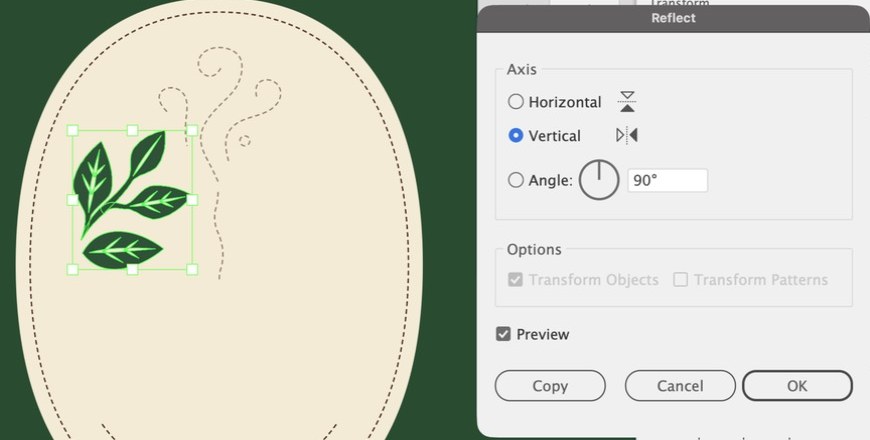
Reflect: Vertical axis, then Copy - Hold Shift and drag the copy to the right side of the label, so it mirrors the left spray: same height, and the same gap from the dashed steam guides in the middle. Shift keeps it level while you drag.
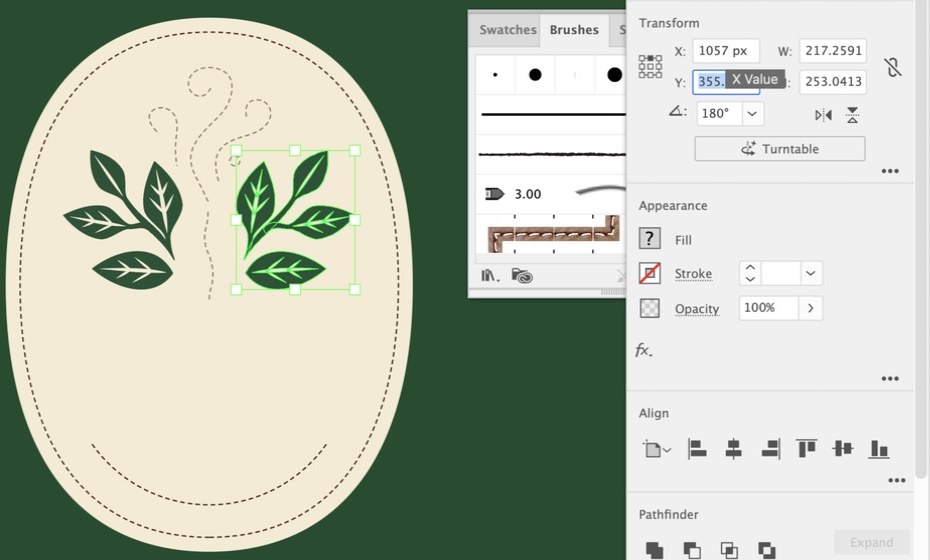
The copy dragged to the right side, mirroring the original - Click empty gray space, or press Ctrl+Shift+A / Cmd+Shift+A, so nothing is selected.
If not: If the right spray points the wrong way, you picked Horizontal: undo and choose Vertical. If only one spray shows, you clicked OK instead of Copy: undo and use Copy. If the copy drifted up or down, drag it again while holding Shift, or select both sprays and click Vertical Align Top in the Properties panel.
- Copy keeps the original. OK moves it.
- Vertical axis means left and right swap.
Cut the coffee bean
about 8 min- Press
Lfor the Ellipse tool. Click once on the label (do not drag). In the box, type Width97px and Height132px, and click OK. Click the Roast Orange swatch so the oval is orange with no stroke. - Drag the bean into the gap between the two leaf sprays, over the dashed crease guide. In the Properties panel under Align, open the Align To menu (the small icon at the left end of the align buttons) and choose Align to Artboard. Then click Horizontal Align Center. The selection snaps to the center line of the label without moving up or down.
- Set the Fill to None first: click the Fill chip in the control bar at the top and choose the white tile with the red slash. If you skip this, the Pencil fills your curve with color. Press
Nfor the Pencil tool and draw the crease: start just above the bean on the dashed line and drag down along it in one stroke, ending just below the bean. The line must run past both ends. - Give the crease a stroke: with it selected, press
Xso the Stroke chip is in front, click the Espresso swatch, then type10in the Stroke field in the control bar and press Tab. - Smooth it: click and hold the Pencil tool in the toolbar and choose the Smooth Tool (Shift+A). A slider appears at the top left of the window. Drag the circle to about
30%. The bumps in your line disappear.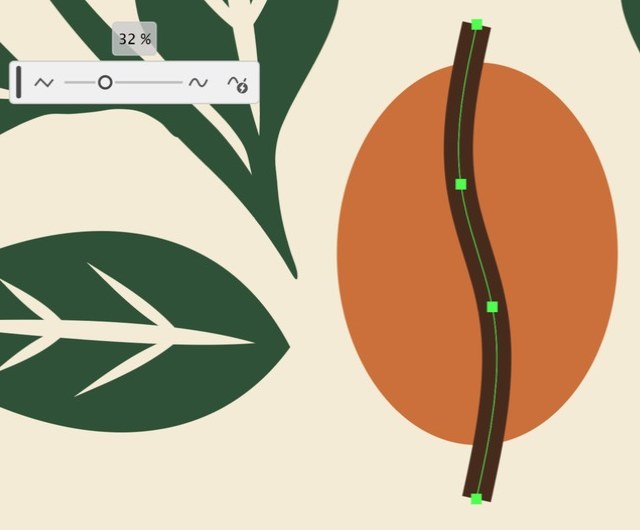
The Smooth tool slider at about 30 percent - Press Shift+W for the Width tool. Double-click the middle of the crease. In the Width Point Edit box, set Total Width to
12px and click OK. The crease is now fatter in the middle.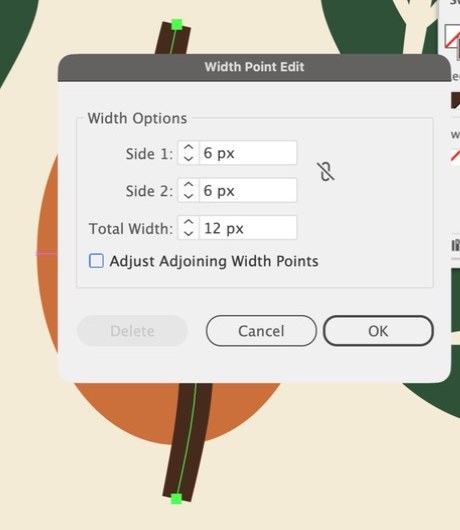
Width Point Edit: Total Width 12 px - Turn the stroke into a shape: .
- Select the bean and the crease together: press
V, then hold Shift and click the bean. In the Properties panel under Pathfinder, click Minus Front (the second button). The crease cuts through the bean and the label shows through.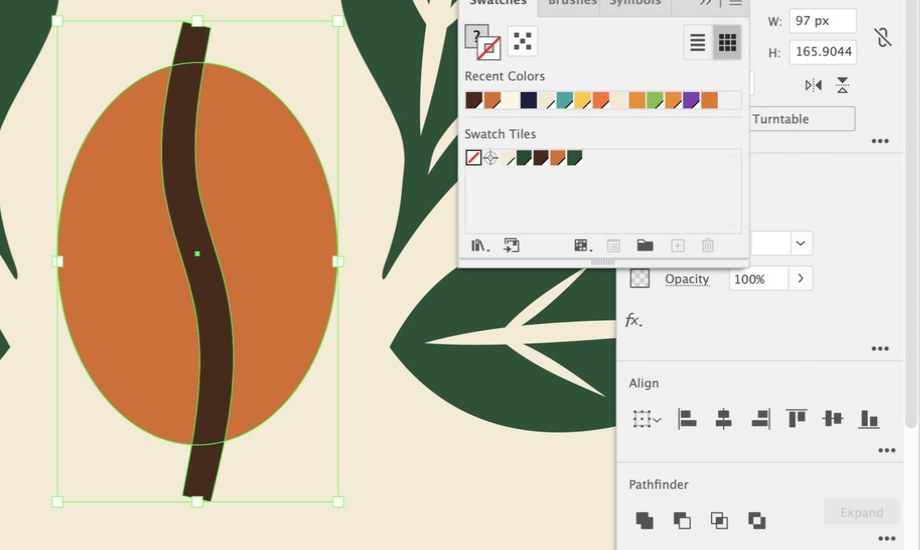
Bean and outlined crease selected; Minus Front is the second Pathfinder button 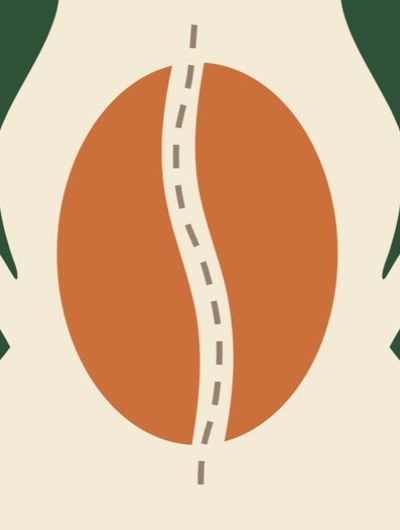
After Minus Front: the label shows through the crease
If not: If the gap stops short of the top or bottom, the crease line did not reach past the bean: undo the Minus Front, lengthen the line with the Pencil, and try again. If the bean turned brown, the crease was in back: undo, select only the crease, choose Object > Arrange > Bring to Front, then Minus Front again. If the Pencil drew a filled blob, set Fill to None and redraw.
- The crease must cross both ends of the oval.
- Minus Front keeps the shape in back and removes the shape in front.
Save and test the Steam Art Brush
about 6 min- Scroll down to the pasteboard. With the black arrow, click the long brown tapered shape. The Properties panel shows W
800px and H34px. - At the bottom of the Brushes panel, click the New Brush button (the plus icon). Choose Art Brush and click OK.
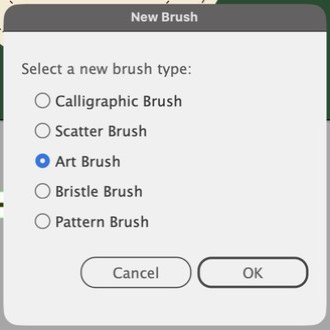
New Brush: choose Art Brush - In the Art Brush Options box, type the name
Steam. Leave Width at Fixed 100 %. - Under Brush Scale Options choose Stretch Between Guides. Click in the Start box and type
120, press Tab, type700in the End box, and press Tab. Two dashed guides move on the preview: the rounded tip and the pointed taper sit outside the guides, so they will not stretch.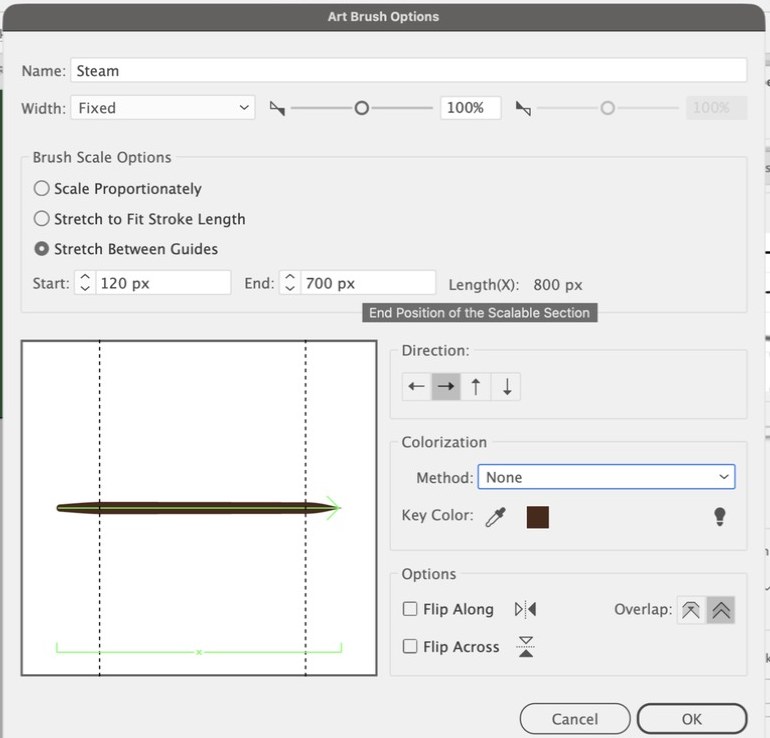
Art Brush Options: name Steam, Stretch Between Guides, Start 120, End 700 - Leave Direction on the right arrow and Colorization on None. Click OK. Keep the original shape on the pasteboard so you can inspect or rebuild the brush later.
- Predict, then test: with Fill set to None, use the Pencil (
N) to draw a short curved path on the gray pasteboard. Click Steam in the Brushes panel and set Stroke to0.52px. Does the middle stretch while the round tip and taper keep their shape? Leave this practice path on the pasteboard; Use Artboards keeps it out of the JPEG.
If not: If the brush is missing, the box was cancelled: select the shape again and repeat. If Start and End read
0 and 800, Stretch Between Guides was not chosen or the numbers were not entered: double-click the Steam brush to reopen it.- Pick Stretch Between Guides, not the default.
- Keep the practice path on the pasteboard so you can see that one brush works on different paths.
Paint the steam
about 8 min- Zoom in on the dashed curls above the bean (Ctrl++ / Cmd++). Set the Fill to None first: click the Fill chip in the control bar at the top and choose the white tile with the red slash. If you skip this, the Pencil fills your curve with color.
- Press
Nfor the Pencil. Start inside the small hook of the left curl and trace the dashed line around the hook and down to its bottom end in one stroke. Where you start is where the rounded tip of the steam goes. - With the curve still selected, click Steam in the Brushes panel. Then type
0.52in the Stroke field in the control bar and press Tab. The curl now tapers from a rounded tip to a point.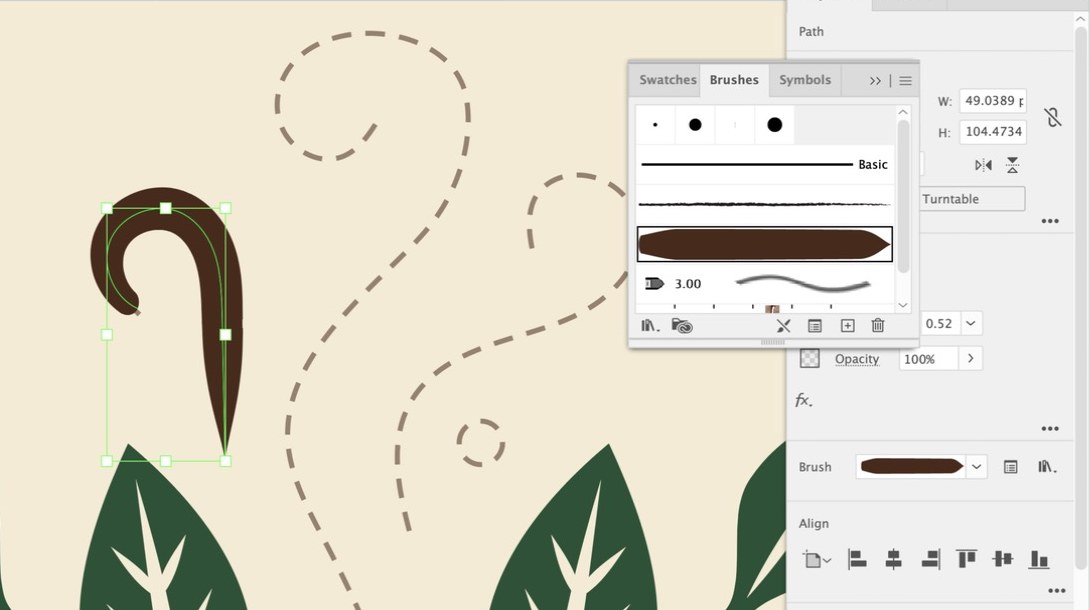
One hand-drawn curl with the Steam brush at 0.52 px, over the dashed guides - Repeat for the middle curl and the right curl. Start each one inside its hook. If a curl looks lumpy, select it, use the Smooth Tool slider, and the brush redraws.
- Add the drip: press
L, click the label, make a circle18by18px, click Espresso, and set the stroke to None. Drag it onto the small dashed circle just right of the middle curl.
If not: If a curl is thick and heavy, the stroke weight is still 1: type
0.52. If the point is at the hook and the round tip is at the bottom, you drew the curl backward: delete it and draw it again starting inside the hook. If the curl is a filled blob, the Fill was not None: set Fill None. If drawing a hook by hand is too hard, see the fallback in the troubleshooting table.- Fill None before the Pencil.
- Start inside the hook, finish at the bottom.
Midpoint turn-in
about 3 minturn-in- In the Layers panel, click the eye icon next to Guides to hide the dashed lines.
- Choose . Set the format to JPEG. Name the file
LastName_Steam.jpg. Check Use Artboards. Click Export. - In the JPEG Options box, set Color Model to RGB and Quality to High. Set Resolution to Screen (72 ppi). Click OK.
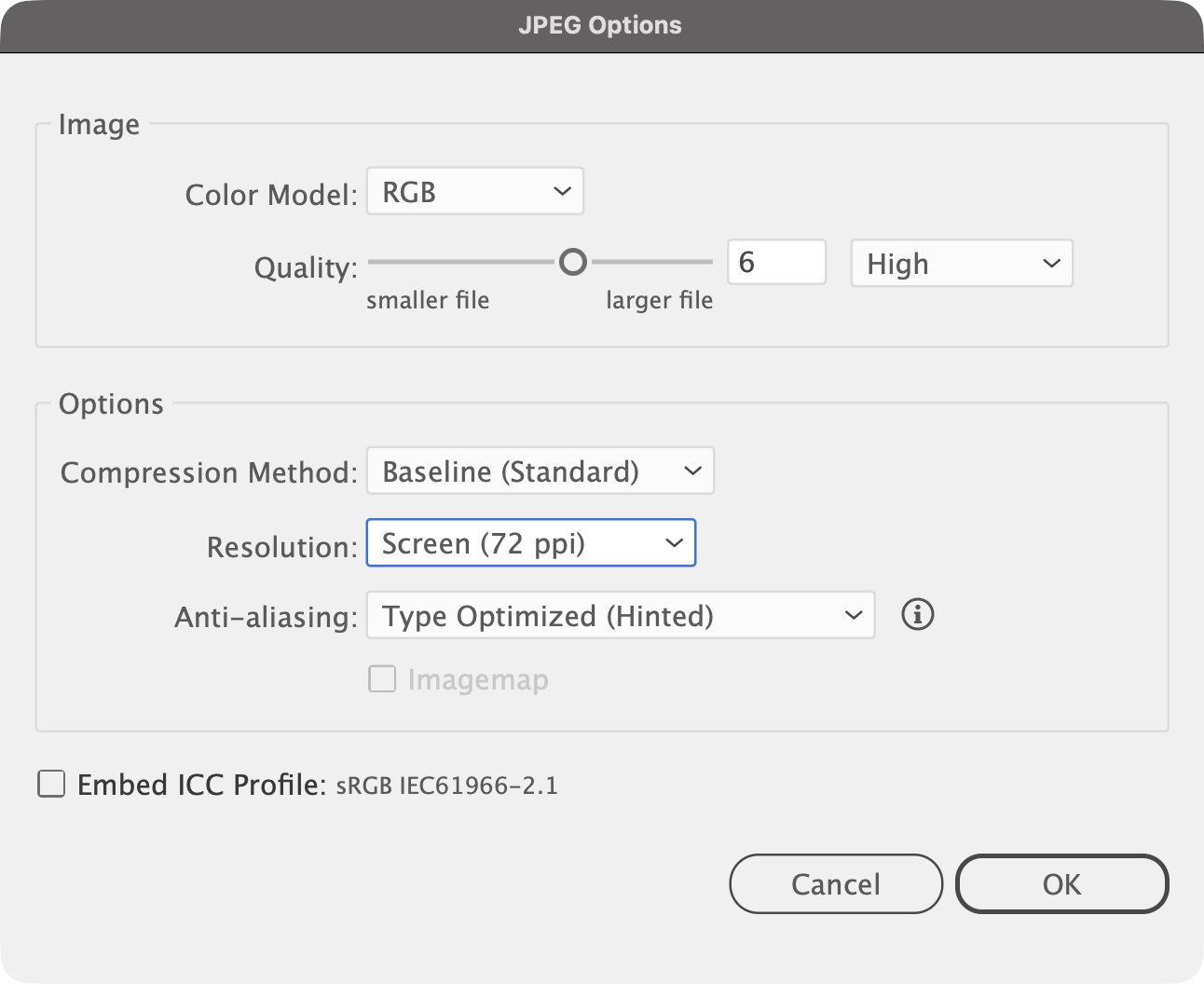
JPEG Options: RGB, High quality, Screen (72 ppi) - Upload
LastName_Steam.jpgto Canvas under the midpoint assignment. Turn the Guides back on (click the eye again) for the rest of class.
LastName_Steam.jpg shows the label with both leaf sprays, the split bean, and the steam, and no dashed lines.If not: If dashed lines show in the JPEG, the Guides layer was visible: hide it and export again. If the JPEG is huge, Resolution was 300 ppi: export again at Screen (72 ppi).
- Hide Guides before you export.
- Name the file with your last name first.
Build the round-bead tile
about 8 min- Scroll below the artboard and select the small brown bead with the cream center. Keep its two circles grouped.
- Choose . Set Horizontal to
22px and Vertical to0px, then click Copy. Press Ctrl+D / Cmd+D twice. You now have four round beads, each center 22 px from the next. Drag a marquee from empty pasteboard around the four beads and choose .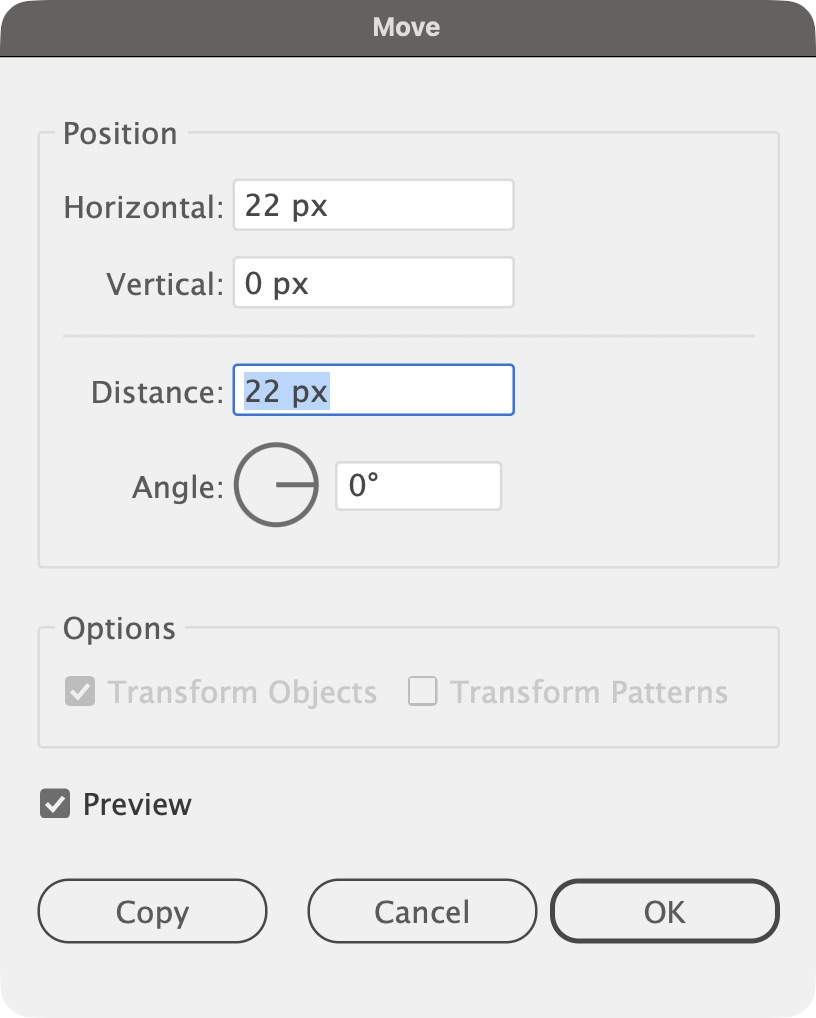
Move: Horizontal 22, Vertical 0, then Copy - Make a
88by28px rectangle withM. Set Fill to None and give it a1px Roast Orange stroke so you can see its edge. Choose . This is the tile boundary: four 22 px intervals, including the interval from the last bead to the next tile's first bead. - Drag a marquee around the bead group and orange rectangle. In the Align panel, set Align To to Align to Selection, then click Horizontal Align Center and Vertical Align Center. The four beads stay in a row while the boundary centers behind them. At 100 percent, each cream center should read as a separate round dot.
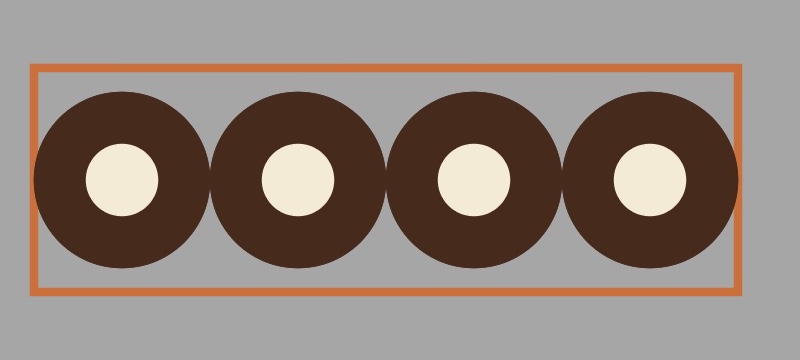
Four beads with the temporary Roast Orange tile outline; selection handles hidden
If not: If the beads merge into a chain, use the revised starter bead or reduce the bead diameter to 20 px. If you cannot grab the rectangle, click the small selection circle at the right of its row in the Layers panel.
- Click Copy in the Move box, not OK.
- Judge the circles at 100 percent before making the brush.
Save and test the Round Beads Pattern Brush
about 5 min- Click only the orange rectangle and set its Stroke to None. Its edge disappears, but it stays behind the beads. If you cannot grab it, click the small selection circle at the right of its row in the Layers panel. Then drag a selection marquee from empty pasteboard around the bead group and rectangle; both objects must be selected.
- Click New Brush in the Brushes panel. Choose Pattern Brush and click OK.
- Name it
Round Beads. Under Fit, choose Approximate path. Leave Scale at100percent and click OK.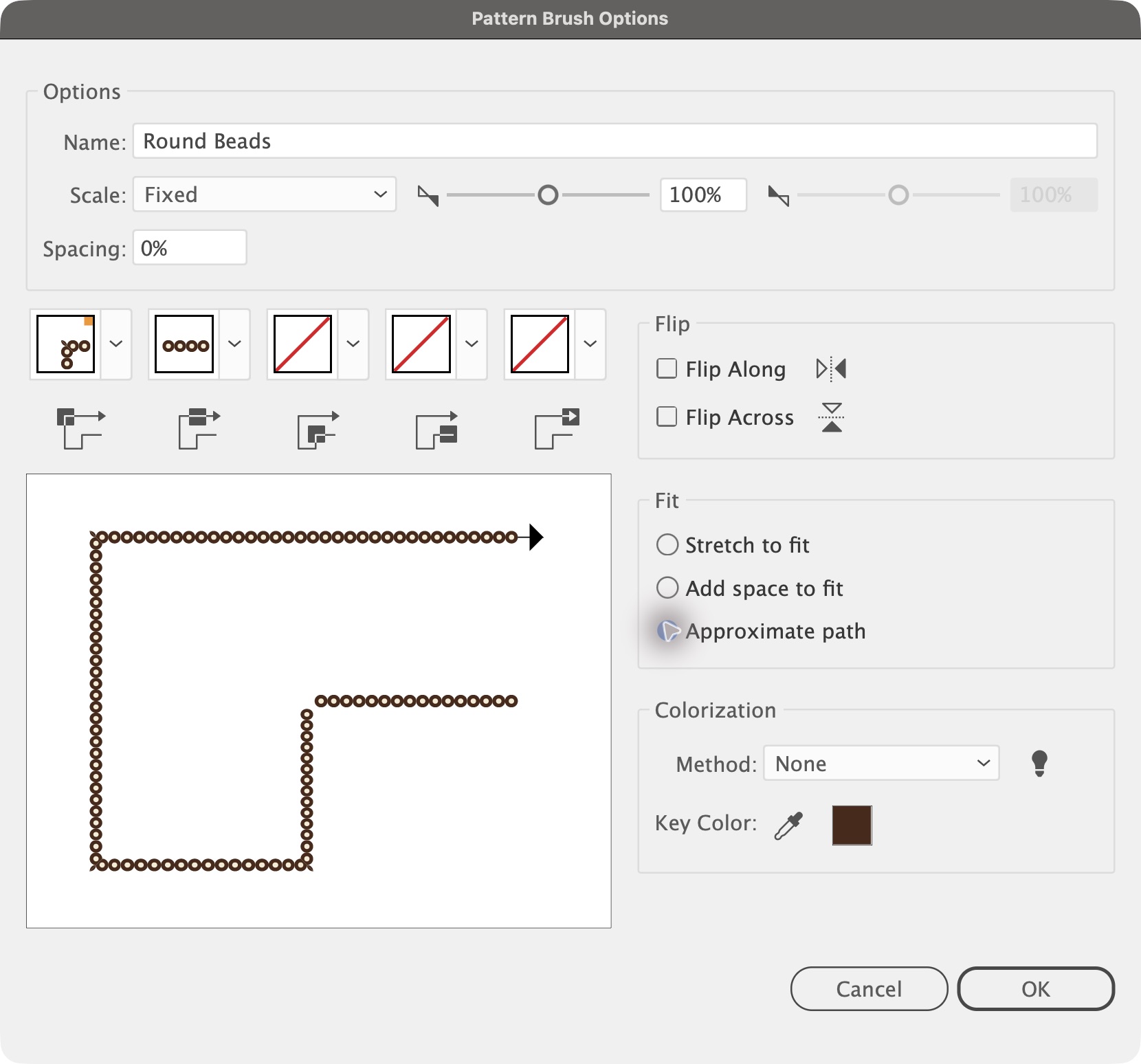
Pattern Brush Options: Round Beads, Approximate path - Keep the completed tile on the pasteboard as editable source art. Predict, then test: draw a short straight path with the Line Segment tool (
\) on the gray pasteboard, click Round Beads, and set Stroke to1px. Does it repeat circles or stretch one bead? Keep this practice path for Step 9.
If not: If the preview clumps every four beads, cancel and check that the 88 px rectangle was selected and sent to the back. If circles stretch into ovals, choose Approximate path.
- Remove the temporary orange stroke, then select the beads and tile boundary together.
- Approximate path keeps the circles round.
Apply, edit, and explain the border brush
about 13 min- Press Ctrl+0 / Cmd+0 to see the whole artboard. Click the dashed oval just inside the edge of the label. It is named Frame path.
- Open and uncheck Dashed Line. The frame path becomes a solid line before you apply the brush.
- Click Round Beads in the Brushes panel. Set the Stroke field to
1px. The beads should sit in a single row inside the cream edge.Round beads with visible cream centers and a clear outer margin - Zoom in at the top and bottom. Every bead should have a visible cream center, and the outside should retain a cream margin. Check the bottom seam for a doubled or missing bead.
- Predict, test, explain: Double-click Round Beads in the Brushes panel and change Scale from
100to85percent. Click OK, then Apply to Strokes. Look at both the border and your practice line: both update because they use the same brush. Say which changed: the brush definition, the two paths, or both. - Undo the scale change (Ctrl+Z / Cmd+Z) to restore the reference-sized beads. If Undo does not restore both paths, reopen Round Beads, set Scale back to
100percent, and choose Apply to Strokes. Keep the practice line off the artboard. - Brush checkpoint: point to the two new practice paths and answer aloud: Which brush stretches one shape? Which repeats a tile? Why did the border and practice line change together? Save your Illustrator file before moving to the type follow-up.
If not: If the border is a woven chain or crescents, rebuild the tile with the revised bead. If it is dashed, confirm Dashed Line is off in the Stroke panel. If one bead at the bottom center looks doubled or there is a small gap, leave it: that is where the path starts and ends, and it sits just below RICH & SMOOTH. Do not rotate the frame path, because that moves the seam into view.
- Select the dashed oval, not the label.
- Weight 1 px; inspect the cream margin.
- Choose Apply to Strokes so both paths update.
Finish the type
about 11 min- Press
T, click empty label below the bean, and typeCOFFEE. Press Esc. In (Ctrl+T / Cmd+T), choose Academy Engraved (on a Mac it may be listed as Academy Engraved LET, style Plain) at184px. Set Horizontal Scale to68percent. Select the text with the black arrow. In Properties under Appearance, set both Fill and Stroke to Espresso and Stroke weight to5.5px. Drag COFFEE just below the bean and leaves, then in the Properties panel under Align, open the Align To menu (the small icon at the left end of the align buttons) and choose Align to Artboard. Then click Horizontal Align Center. The selection snaps to the center line of the label without moving up or down.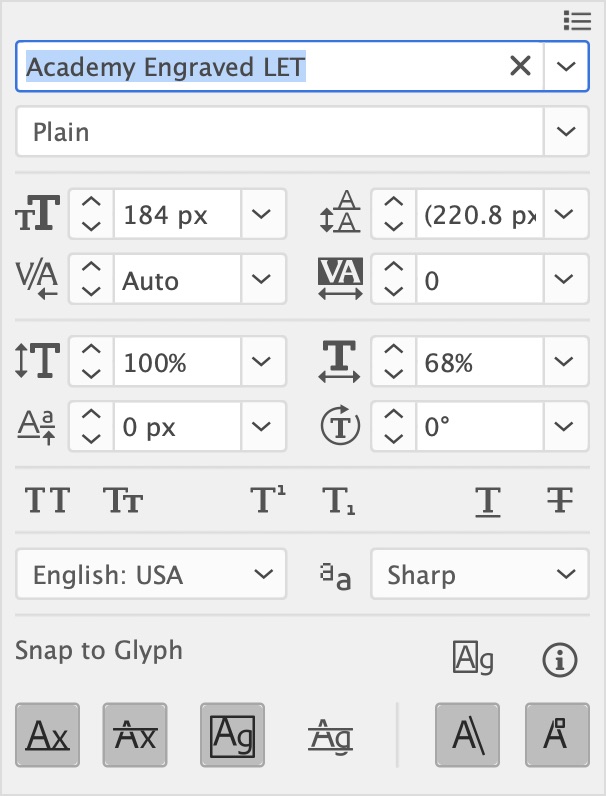
Character panel: COFFEE at 184 px with Horizontal Scale at 68 percent - Type
SINGLE ORIGINbelow COFFEE. Set Montserrat Bold,46px, Tracking50, and Espresso. Align to Artboard and click Horizontal Align Center. - Type
CRAFT ROASTbelow SINGLE ORIGIN. Set Montserrat Bold,37px, Tracking90, and Roast Orange. Leave room above the dashed curve; center it the same way. - Press
Tand click on the dashed curve near its left end. The cursor changes to a curved type icon. TypeRICH & SMOOTH, then press Esc. Set Montserrat Bold,40px, Roast Orange. In the Paragraph section of Properties, click Align center.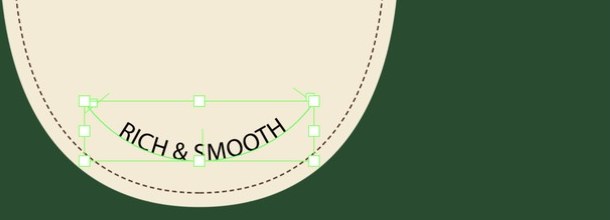
Type on a path: clicked near the left end, then Align center The finished lockup - Check the gaps between all four lines. The two practice paths and brush source art remain on the gray pasteboard and will not appear in the JPEG when Use Artboards is checked.
If not: If COFFEE is too wide, check Horizontal Scale 68 percent. If the curved text runs off the end, undo and click near the left end. If a font is missing, ask the instructor to activate it; Arial Bold is a fallback for Montserrat.
- Place and center each line before starting the next.
- Click near the left end of the curve.
Final export
about 4 minturn-in- Hide the Guides layer in the Layers panel. Click empty gray space, or press Ctrl+Shift+A / Cmd+Shift+A, so nothing is selected.
- Choose . Set the format to JPEG. Name the file
LastName_CoffeeLabel.jpg. Check Use Artboards. Click Export. Set Color Model to RGB, Quality to High, and Resolution to Screen (72 ppi). Click OK.JPEG Options for the final export: RGB, High quality, Screen (72 ppi) - Upload
LastName_CoffeeLabel.jpgto Canvas. Save yourLastName_CoffeeLabel.aifile (Ctrl+S / Cmd+S). Do not upload it.
LastName_CoffeeLabel.jpg shows the complete label: leaves, bean, steam, round beads, and type, with no dashed guides.If not: If dashed lines show, the Guides layer was visible: hide it and export again.
- Hide Guides.
- File name starts with your last name.
Bonus, compare Art Brush width
about 5 minbonus- In the Brushes panel, double-click Steam. Predict which paths will change when you edit this brush.
- Change Width from
100percent to120percent, click OK, then choose Apply to Strokes. Your three curls and the curved practice path should all get bolder. - Explain why the border did not change. Undo, or set Steam's Width back to
100percent and apply the change, if you prefer the sample size.
If not: If nothing changed, you chose Leave Strokes: edit the brush again and choose Apply to Strokes.
- Double-click the brush in the panel, not the art on the label.
- Choose Apply to Strokes.
Final checklist
- Two mirrored leaf sprays, one on each side.
- The bean is split by an S-shaped gap that runs all the way through.
- Three curls of steam made with my Steam Art Brush, each with the rounded tip in the hook.
- The round-bead border goes all the way around the label with separate cream centers and a clear outer cream margin.
- I tested Steam and Round Beads on new pasteboard paths, then edited Round Beads and saw both of its strokes update.
- I can explain: an Art Brush stretches artwork along a path; a Pattern Brush repeats a tile along a path.
- I set COFFEE, SINGLE ORIGIN, and CRAFT ROAST, then put RICH & SMOOTH on the curve.
- I hid the Guides layer before exporting.
- I exported with Use Artboards at Screen (72 ppi), the file name starts with my last name, and I uploaded the JPEG, not the .ai.
Optional steps
Finished early? Do these in any order.
Stars and dots
about 5 min- Click and hold the Rectangle tool and choose the Star Tool. Click the label once. Set Radius 1 to
12px, Radius 2 to3.6px, and Points to4. Click OK and click Espresso. Set its stroke to None. - Drag the star to the left of SINGLE ORIGIN, lined up with the middle of the letters. Hold Alt / Option and Shift and drag a copy to the right side. The two stars bracket the line.
- Make a
9by9px Roast Orange circle, put it to the left of CRAFT ROAST, and Alt / Option-Shift-drag a copy to the right side. Keep everything above the dashed curve so RICH & SMOOTH has room.
The finished label keeps distinct round beads with cream centers and a clear cream margin around the outside edge.
Troubleshooting
| Problem | Fix |
|---|---|
| The two leaf sprays are not level. | Select both sprays and click Vertical Align Top in the Properties panel. |
| I clicked OK in the Reflect box and lost my left spray. | Undo, then reflect again and click Copy. |
| The Pencil draws a filled blob. | The Fill was not None. Set Fill to None in the control bar and draw again. |
| The bean is not split all the way. | The crease did not reach past the top and bottom of the bean. Undo the Minus Front and draw the crease longer. |
| Minus Front made the bean brown, or did nothing useful. | The crease was not in front, or it was still a stroke. Undo, choose Object > Path > Outline Stroke, bring the crease to the front, then Minus Front. |
| I cannot find the Smooth tool. | Click and hold the Pencil tool in the toolbar, or press Shift+A. |
| The steam is huge and heavy. | The stroke weight is 1. Type 0.52 in the Stroke field. |
| The steam point is at the hook and the round tip is at the bottom. | You drew the curl backward. Delete it and draw again starting inside the hook. |
| I cannot draw the hook shape by hand. | Fallback: in the Layers panel unlock Guides, click the dashed curl, choose Edit > Copy, lock Guides again, click the Poster layer, choose Edit > Paste in Front, then click Steam and set the weight to 0.52. Uncheck Dashed Line in the Stroke panel if dashes show. |
| The Move box moved my bead instead of copying it. | You clicked OK. Undo and click Copy. |
| The beads become crescents. | Check the starter bead: its outer diameter should be 22 px. The older 49 px ring makes a woven chain. Keep the 22 px center spacing. |
| The beads come out in clumps of four. | Select the 88 by 28 px tile boundary with the beads, send it to the back, remove its orange stroke, and make the brush again. If you cannot grab the rectangle, click the small selection circle at the right of its row in the Layers panel. |
| The beads look like ovals. | Fit is on Stretch to fit. Double-click Round Beads and choose Approximate path. |
| The border shows gaps or dashes. | Open Window > Stroke and uncheck Dashed Line. |
| I edited Round Beads, but the border did not change. | Reopen the brush, make a visible scale change, and choose Apply to Strokes when Illustrator asks. |
| My practice paths show in the JPEG. | Move them to the gray pasteboard outside the artboard, then export again with Use Artboards checked. |
| The curved type runs off the end of the curve. | You clicked the middle of the curve. Undo and click near the left end, then Align center. |
| Academy Engraved or Montserrat is missing. | Activate Academy Engraved and Montserrat from Adobe Fonts. Ask the instructor before using a plain serif for COFFEE because it loses the engraved detail. |
| Dashed lines show in my JPEG. | Hide the Guides layer and export again. |
| The Brushes panel disappeared when I clicked a color. | Press F5 to bring Brushes back. |
| The artboard went gray and faded. | You double-clicked into Isolation Mode. Press Esc. |
| All my panels vanished. | You pressed Tab. Press Tab again. |
What this project was actually about
Today the artwork is brushes, and a brush is artwork you draw once and use as a stroke. You tested an Art Brush and a Pattern Brush on new paths, then edited a shared brush definition and watched its strokes update. Packaging and label designers build borders, ropes, and ornaments this way so one change updates every place the brush is used. Next you build a merch mockup, and in the capstone you build a branded wordmark with the same habits: draw it small, save it, reuse it.
Tools used
- Reflect with Copy, and X and Y with the reference point
- Ellipse tool with the click-to-size box
- Pencil tool and the Smooth tool slider
- Width tool and the Width Point Edit box
- Outline Stroke and Pathfinder Minus Front
- Brushes panel: New Brush, Art Brush with Stretch Between Guides, Pattern Brush with Approximate path
- Move with Copy and Transform Again
- An invisible tile boundary to set Pattern Brush spacing
- Type tool, Character panel (size, tracking, horizontal scale), Paragraph center alignment, and type on a path
- Export As JPEG with Use Artboards